We can connect your Shopify channel for you during onboarding. Please note we now use Shopify custom apps to connect your store. Private apps have been depreciated.
Integration Summary
- Imports sales orders
- Option for stock sync
- Updates tracking numbers
- Updates despatched status
- Imports products from Shopify (product sync)
- Fraud checks
- Imports personalisation data (property mapping)
- Gifts notes can be mapped with additional setup
- Supports webhooks for instant order sync & cancellations
- Supports fulfilment & inventory sync from multiple locations
Shopify Setup
Navigate to Apps > Develop Apps For Your Store
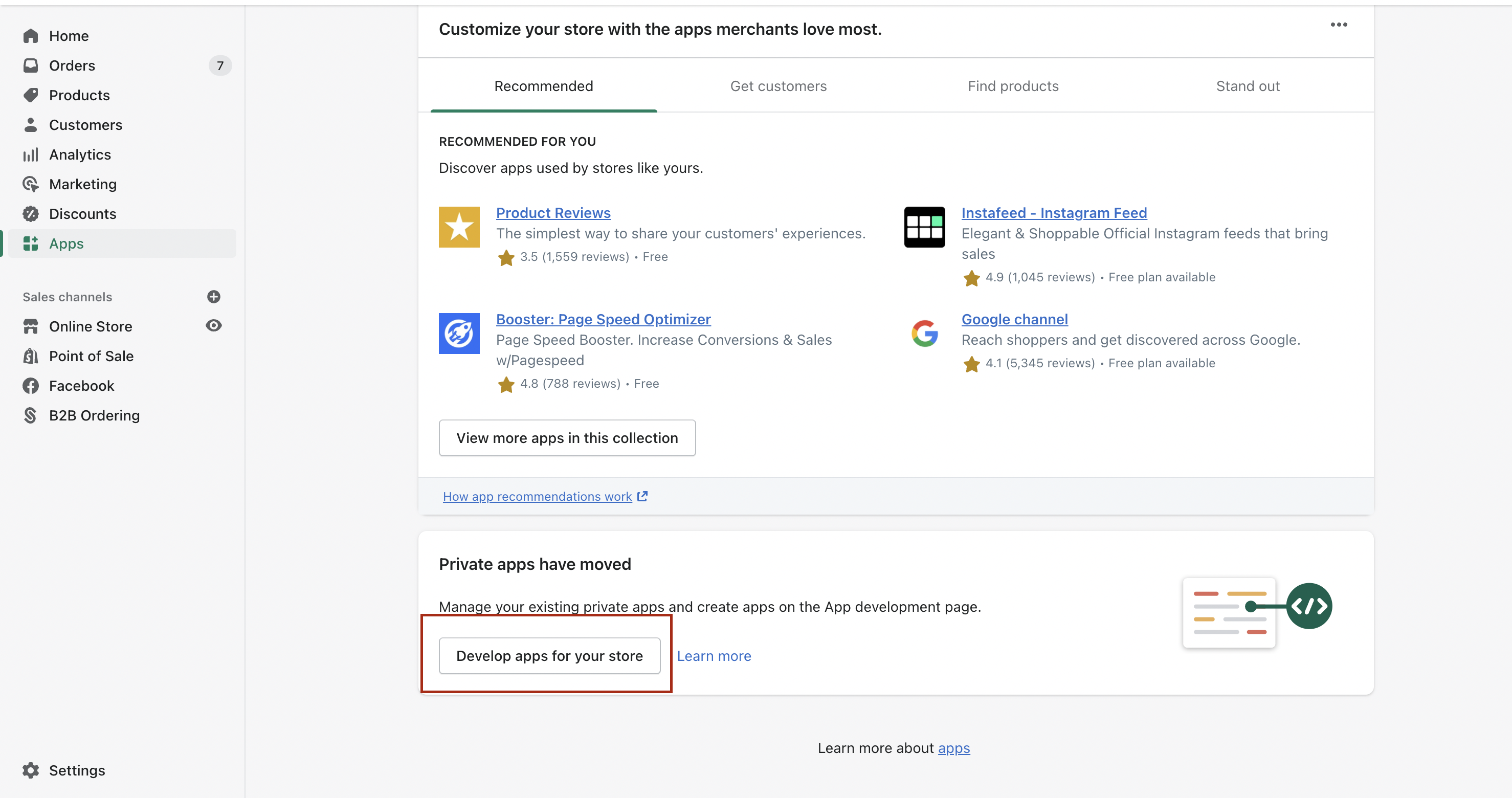
Select "Create An App"
Name The App "Fulfillable" and then select "Create App"
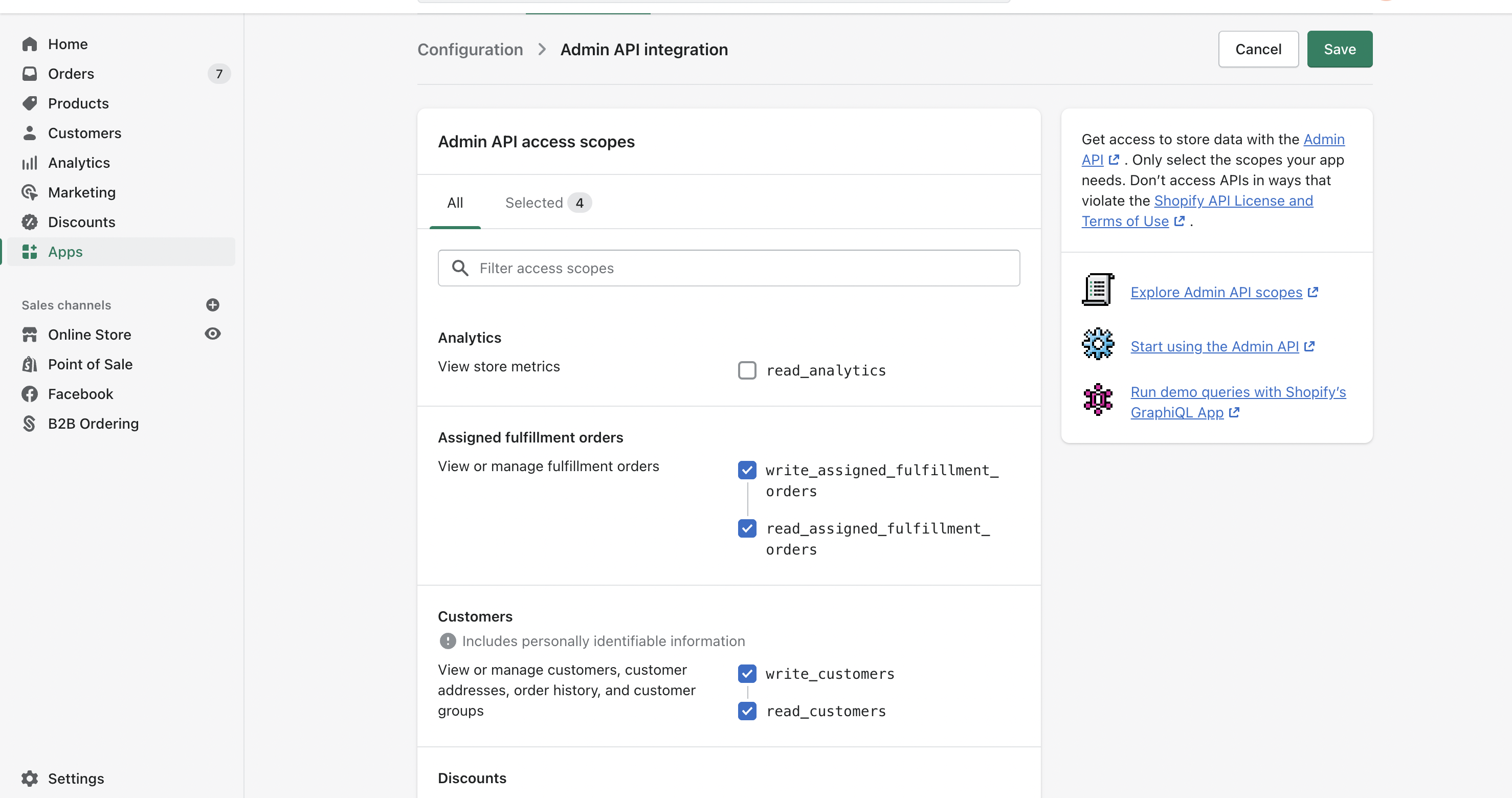
Now Select "Configure Admin API Scopes"
Now Make Sure To Enable The Following Permissions:
Assigned fulfillment orders - Read / Write
Customers - Read / Write
Discounts - Read / Write
Draft orders - Read / Write
Fulfillment services - Read / Write
Inventory - Read / Write
Locations - Read
Merchant-managed fulfillment orders - Read / Write
Order editing - Read / Write
Orders - Read / Write
Products - Read / Write
Shipping - Read / Write
Third-party fulfillment orders - Read / Write
At the bottom, for the webhook version, select "2023-01"
Scroll back to the top and select "Save"
And then "Install App"
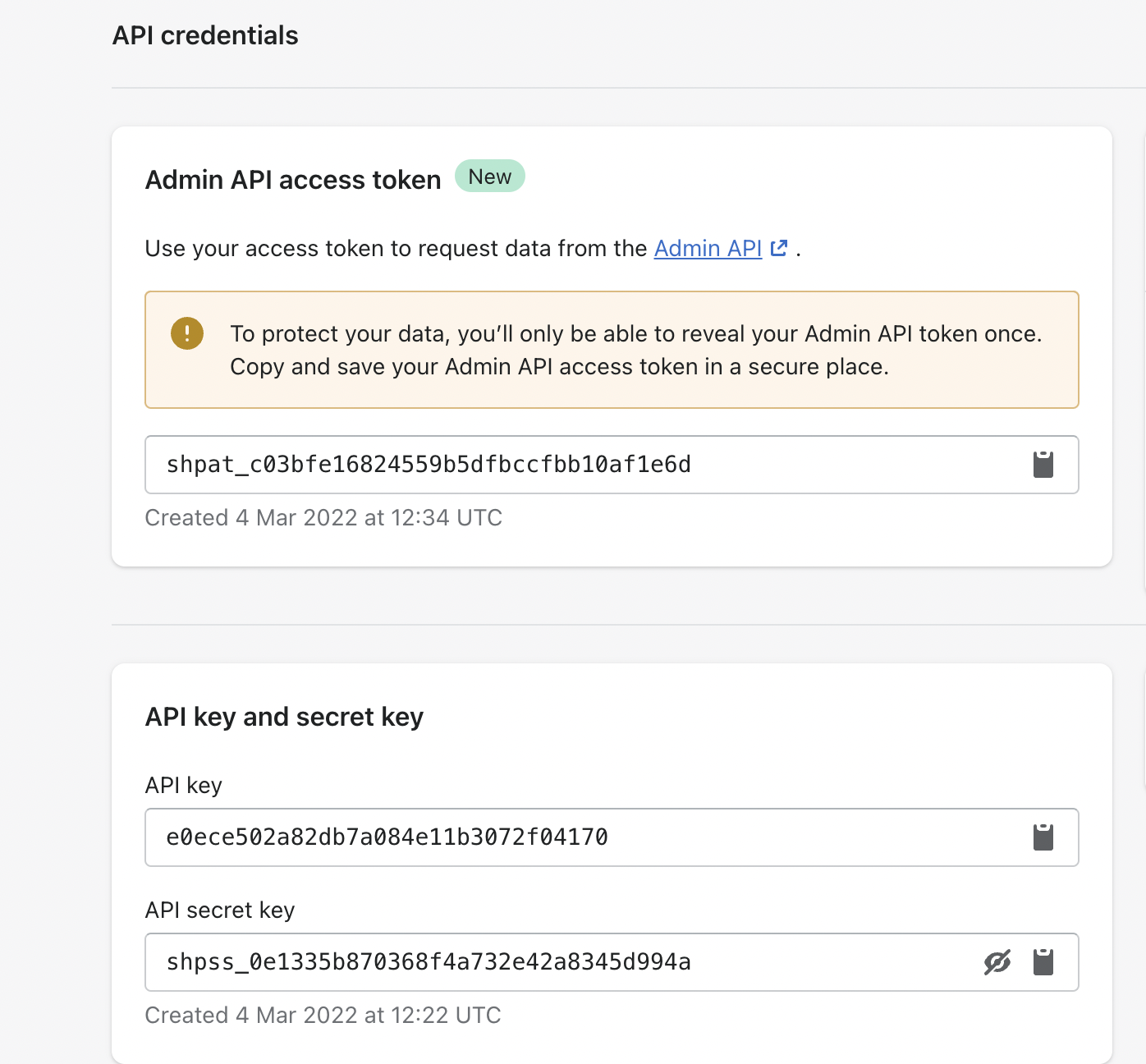
You will now be provided with 3 sets of API credentials. Please sent these to your account manager or if self-installing, please follow to the next step.
Fulfillable Connect Setup
Now you can setup the connection in Fulfillable by navigating to Connect > Order Integrations > Shopify
You can set your order sync delay (frequency) in intervals of 15 minutes and also choose if stock sync is turned on and the delay for this as well.
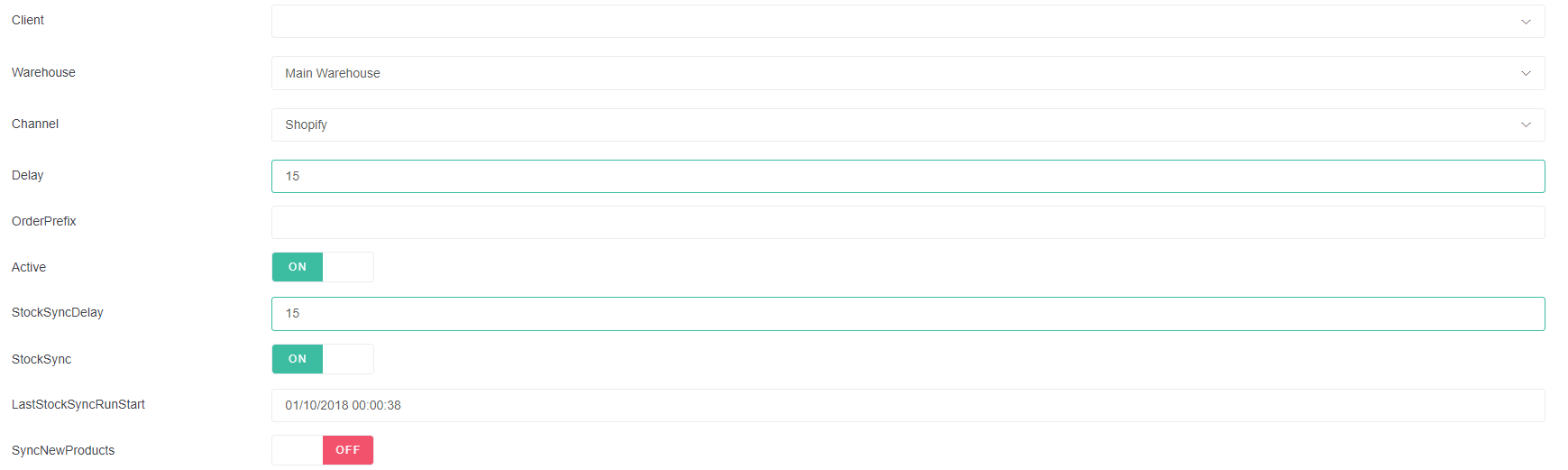
Next enter the API key & password & Admin API access token from the Shopify Store
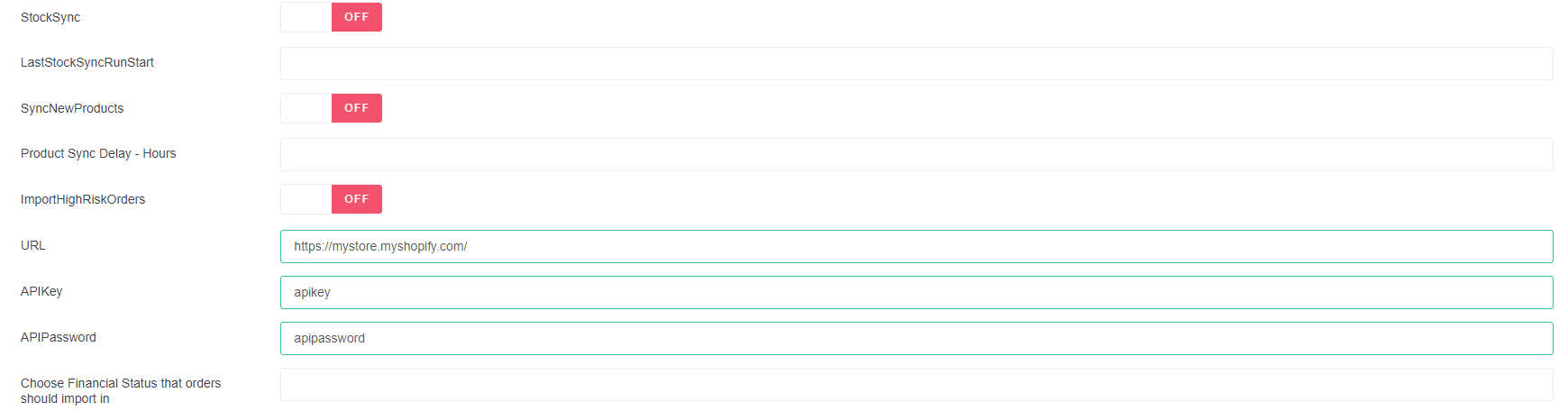
After creating the connection and saving your setting you need to set the location ID that we are importing from. Please make sure your Shopify Warehouses are configured correctly on Shopify Itself.
On this connect list click "Get Locations".
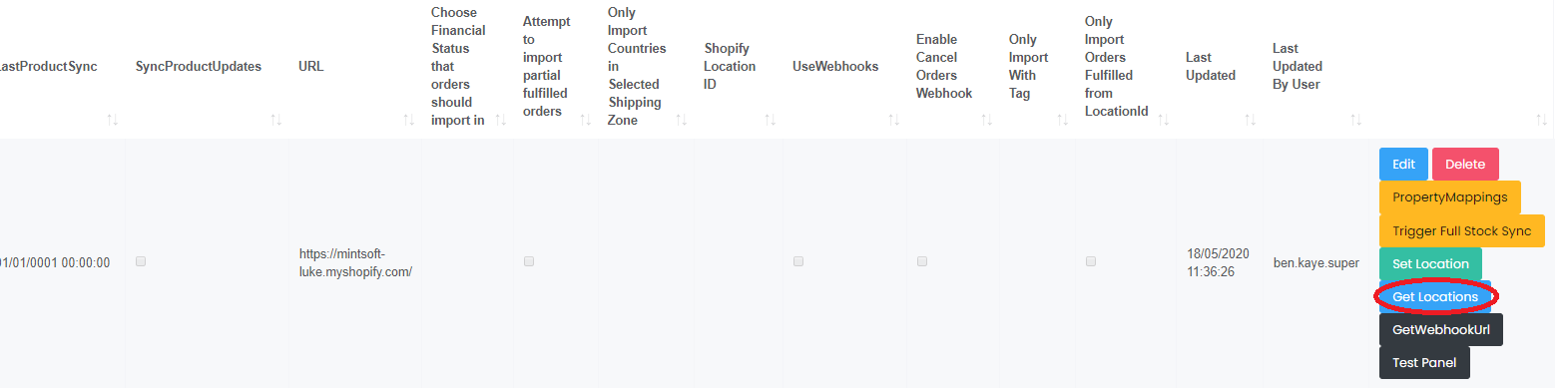
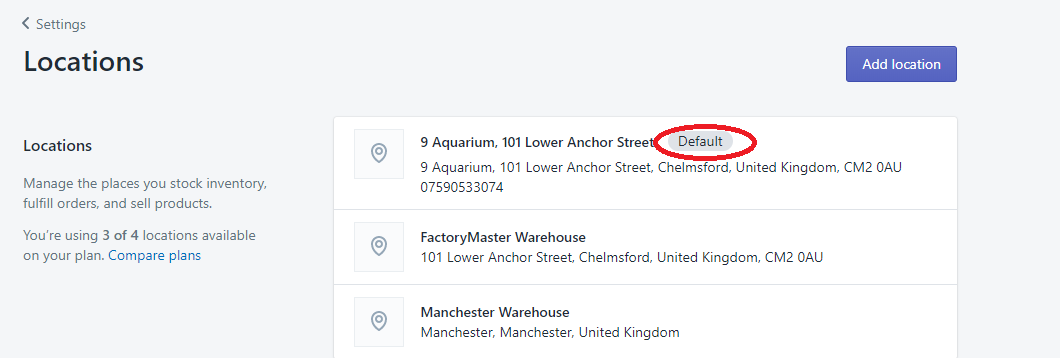
Select the correct location ID to use.

If you are not sure which location ID to use, please check your Shopify settings under Settings>Locations.
Dealing with Multiple Locations
If your Shopify store you are connecting to has multiple locations, and you only want to import orders for a single locations, please follow these steps;
1) Fulfilment Permissions
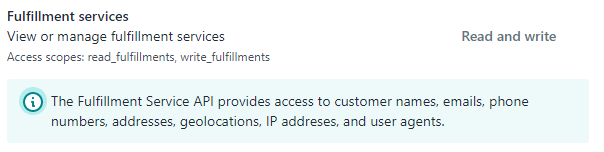
Please make sure all fulfilment permissions on the Shopify App have Read / Write set.
You may need to click the link to view disabled permissions to grant access to all fulfilment areas.
This includes:
2) Fulfillable Setup
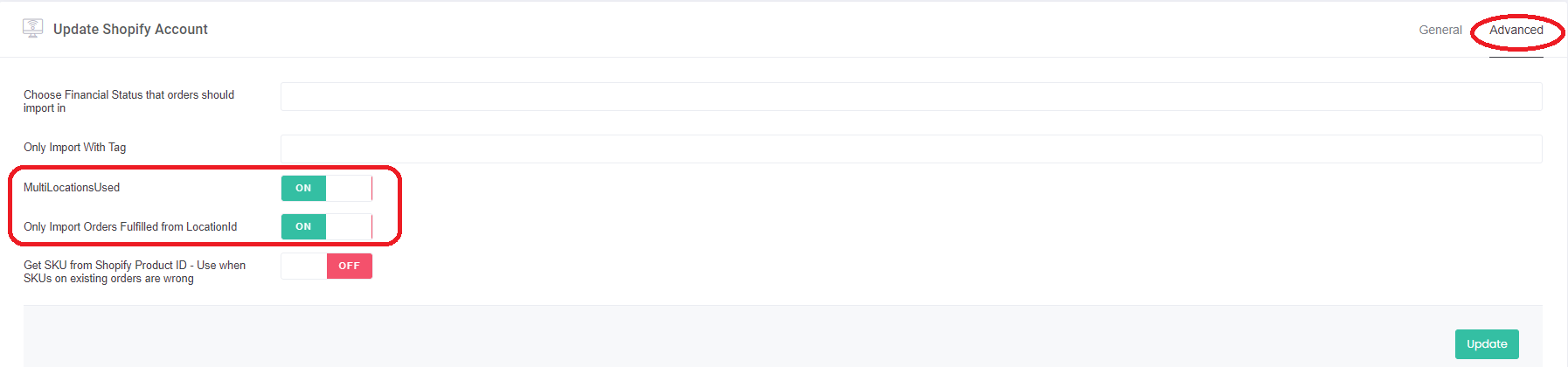
On the Fulfillable connect setup to to the Advanced tab and toggle on these two options to use multiple locations and only import orders from the specified location ID
Comments
0 comments
Please sign in to leave a comment.