Overview
- The label generator is a powerful tool that allows you to generate barcode labels in bulk so you can either send them to your supplier or even print and label the products yourself.
- Our support team can create any label size and design you require, please contact your account manager who will get this done for you.
- This tool allows you to generate labels for an unlimited amount of products while also being able to specify the exact quantity you need for each SKU.
- If your supplier is generating your barcodes see the Supplier Generating Barcodes section of this guide near the end.
Generating Labels
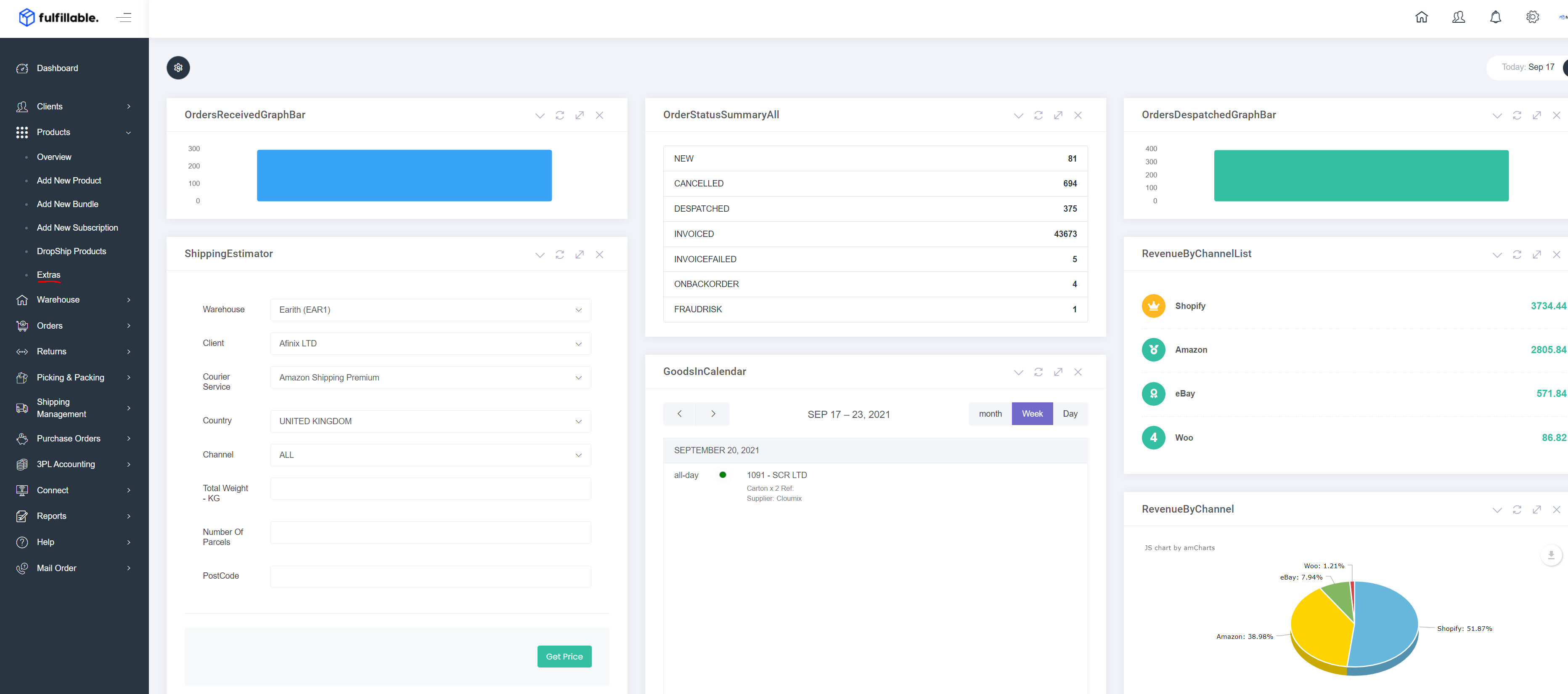
From the Fulfillable dashboard, navigate to Products>Extras
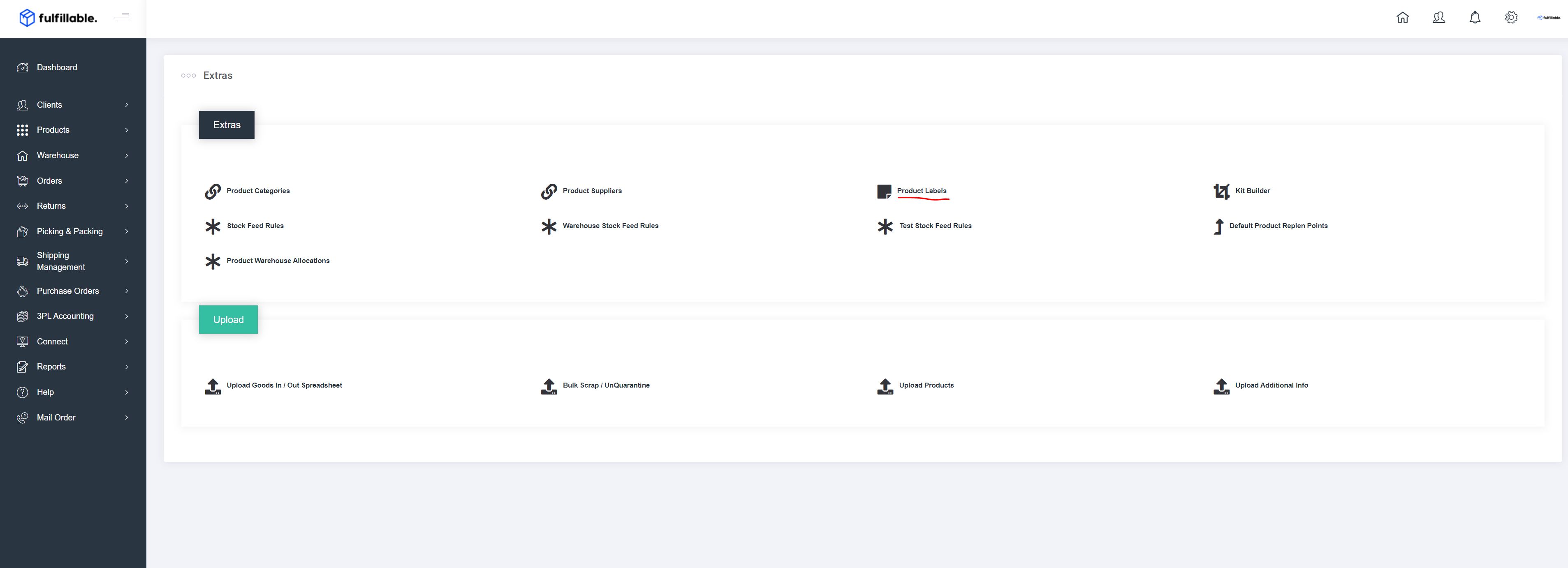
Navigate to "Product Labels"
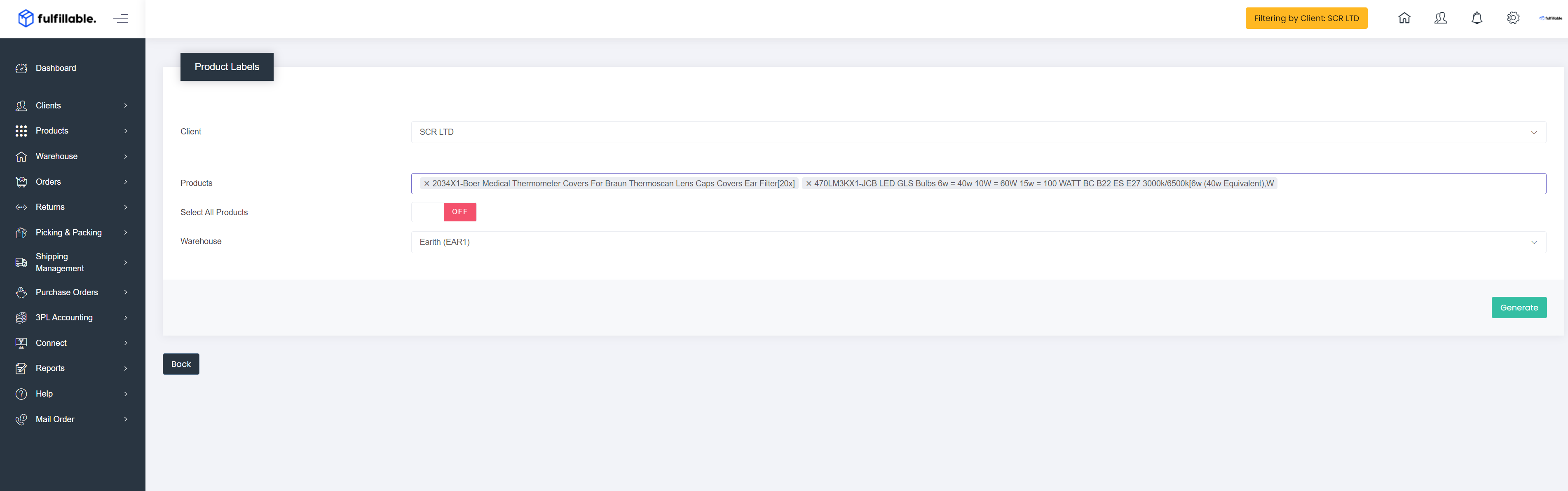
From here either enter the products you need labels for one by one or select "All Products" if you need to generate labels for every single product on your Fulfillable dashboard. When done click "Generate"
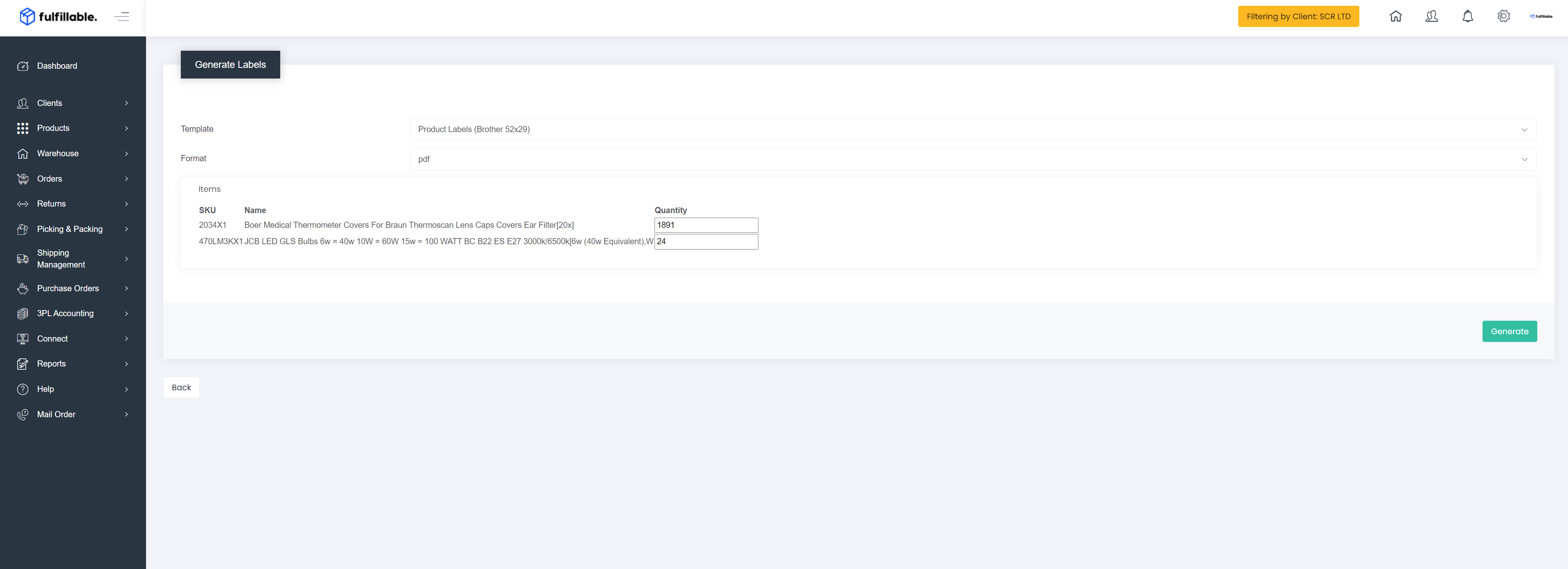
On this page select the template which you wish to use, there are some default templates available or the template your account manager has added for you will appear here also. Then select the format you require, we usually recommend using PDF. Finally enter the quantity of labels you need for each product added. Click "Generate"
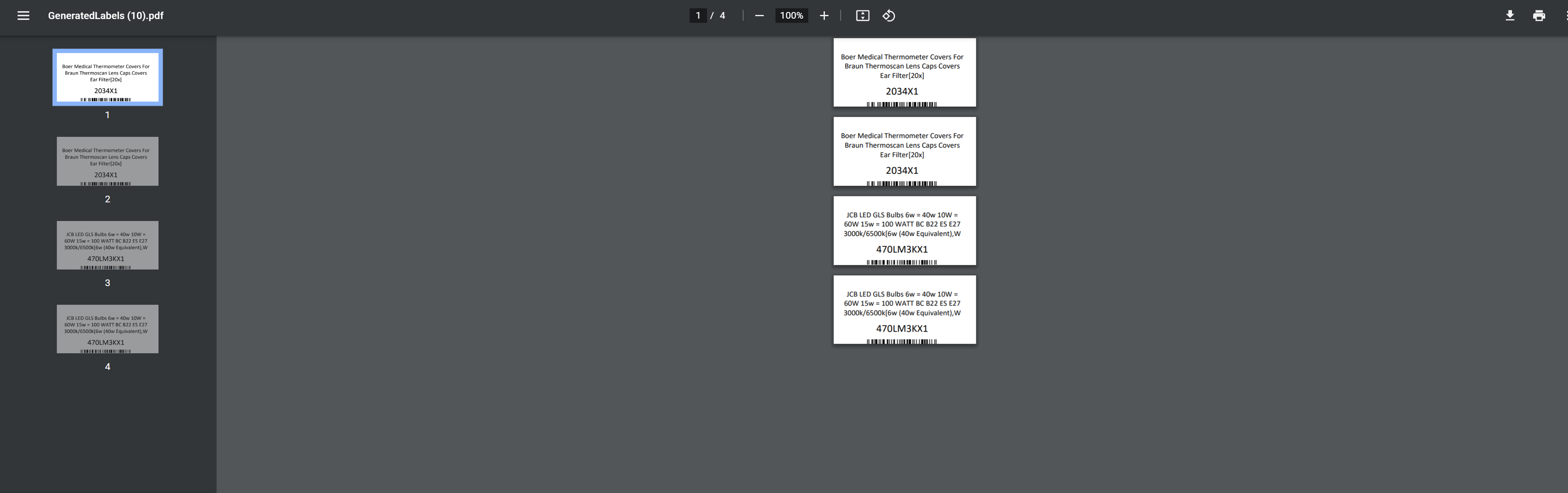
The system will automatically generate labels for the products and quantities specified. You can now either print them or send them to your supplier to handle this for you. As the labels are PDF format you can also use the PDF image to incorporate the barcode label into your product packaging. Your suppliers design team will be able to assist.
Notes
Product labels can only generate if you have the data on the products within Fulfillable. If there no product data on Fulfillable for the product the barcode label will show not show anything for that missing data.
Barcode formats we support:
- Internal ID (Every product on Fulfillable has an internal ID, we recommend using this if your products do not have UPCs or EANs)
- UPC
- EAN (Recommended if you have a GS1 account)
- SKU
- UPC (QR)
- EAN (QR)
- SKU (QR)
Text data we support:
- Product SKU
- EAN
- UPC
- Product Name
- Product Description
Printers
If you or your supplier is using a continuous feed or thermal label printer, please supply us with the Brand, Model & Paper Size so we can create a template to suit your printer.
Supplier Generating Barcodes
If your supplier is generating barcodes for you its recommended to export your product list by CSV from Fulfillable and generate the barcodes based on the product export data.
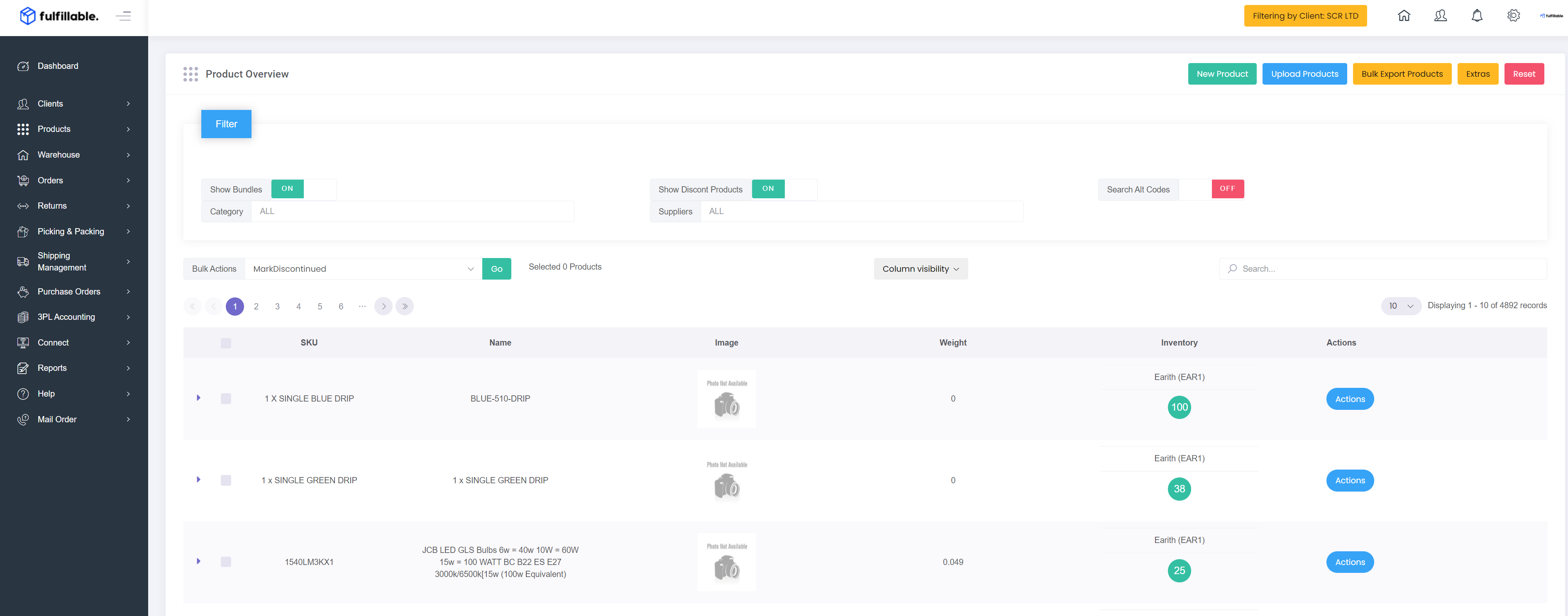
You can get your product data by going to Products>Overview>Bulk Export Products (Top Right)
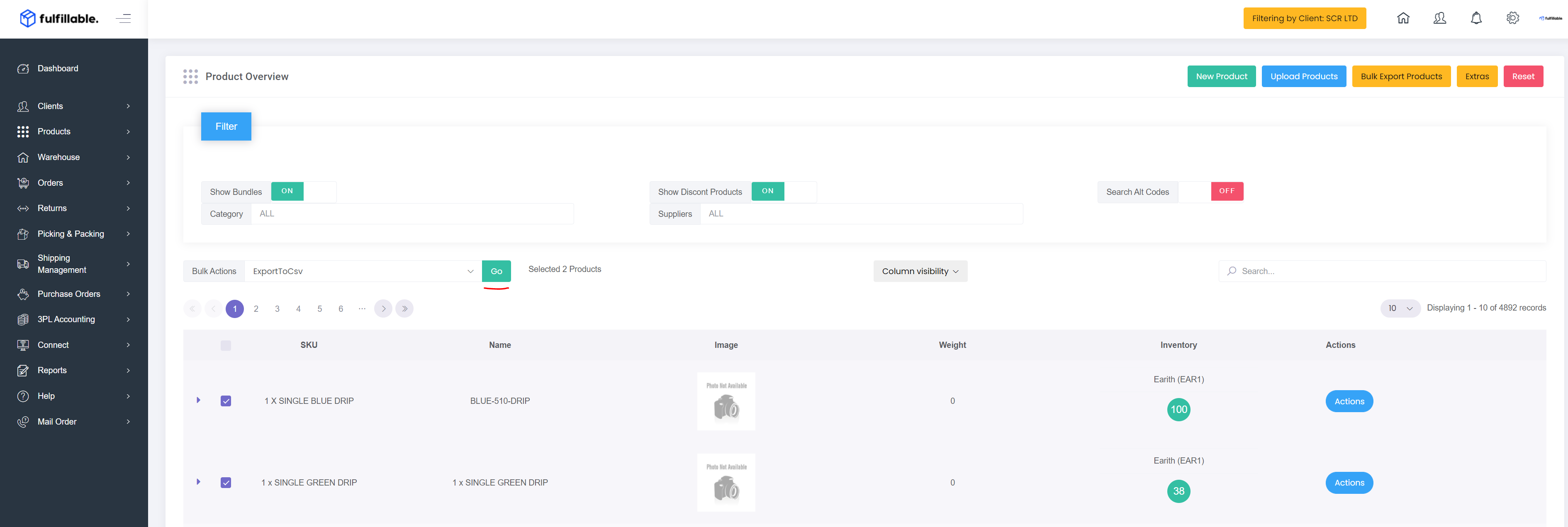
Or specific items can be selected. Then go to Bulk Actions>ExportToCSV and then click "Go"
The supplier can then use the data field that is populated for each product to generate the barcodes
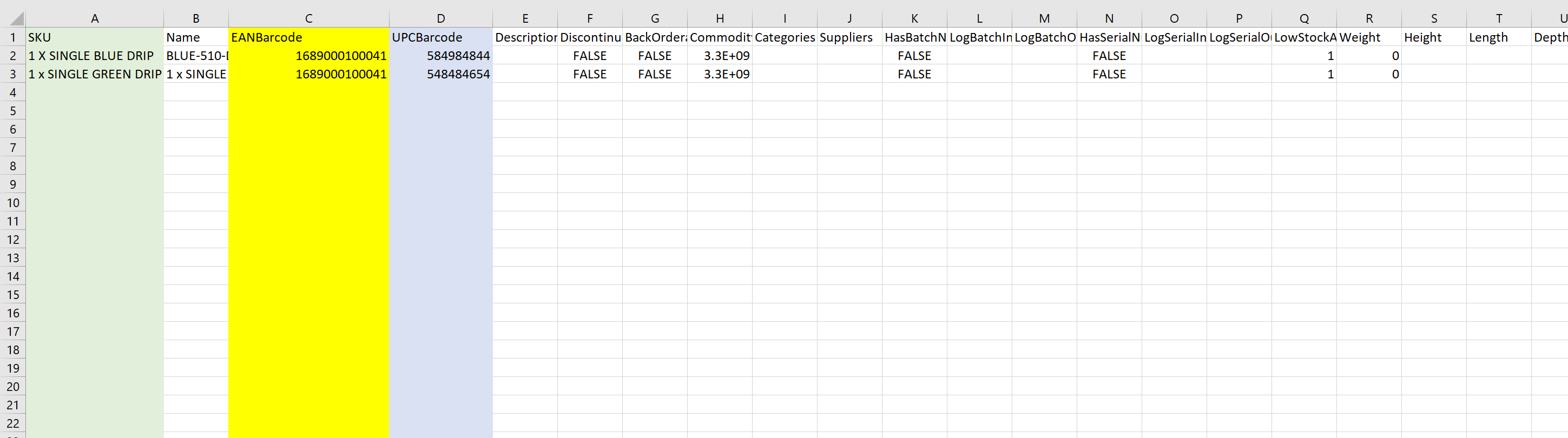
If you are not using EAN barcodes we recommend that format CODE128-A is used to ensure the products are able to be scanned. Your supplier can generate barcodes from the following data from your Fulfillable product data:
- SKU (Use CODE128-A)
- EAN (Use EAN-13 or CODE128-A)
- UPC (Use CODE128-A)
Comments
0 comments
Please sign in to leave a comment.