Overview
- Bundles allow you sell individual products on their own as well as in bundles and keep the inventory synced.
- Each bundle has its own SKU, when an order containing the bundle SKU is imported, the system will break down the SKU into individual products.
- Bundle products will still sync inventory as long as all the bundle items are in stock. For example, if bundle A contains two products B+C. If one of these products goes out of stock the whole bundle will be unavailable for purchase.
Note
There are two ways to create bundle products
- Convert an existing product into a bundle.
- Create a bundle manually.
Converting An Existing Product Into A Bundle
For this to work, the product must not have been sold, have stock allocated or be attached to any ASNs. If the product has been sold before you must delete the product and then wait for the product to sync back from your store.
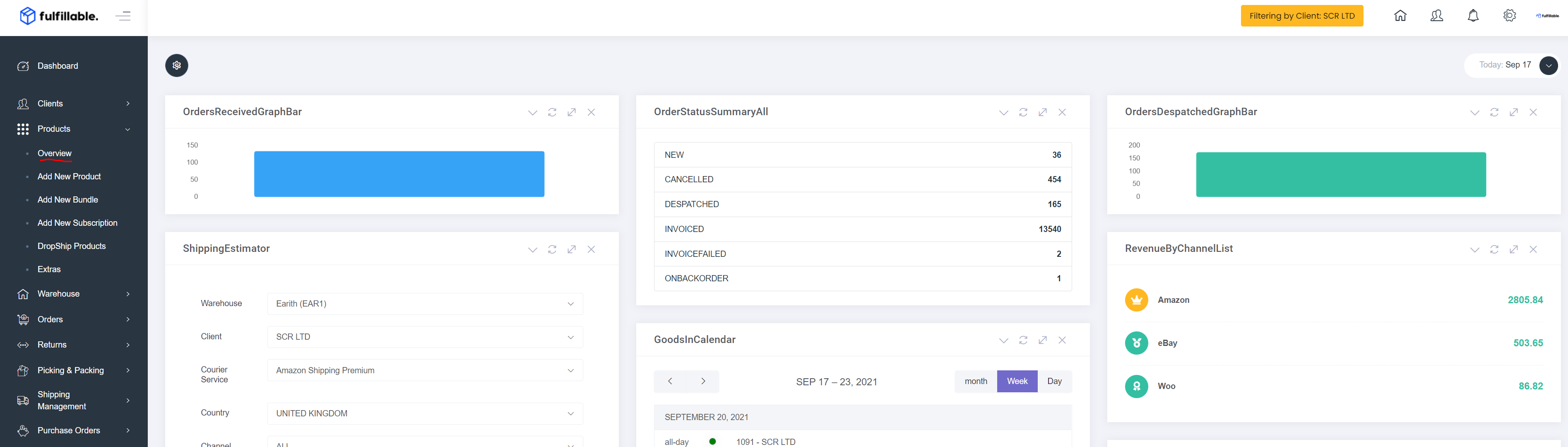
From your dashboard navigate to Products>Overview
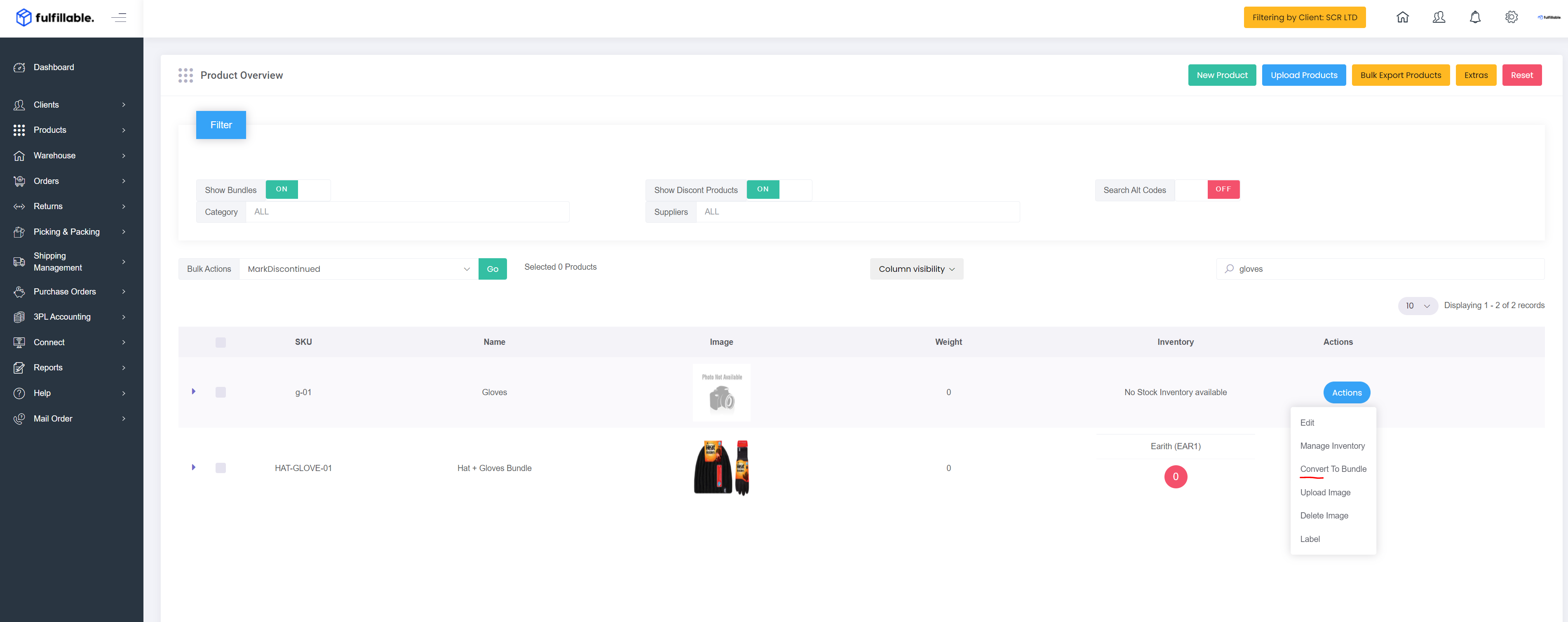
Search for the product you wish to convert and then click Actions>Convert To Bundle
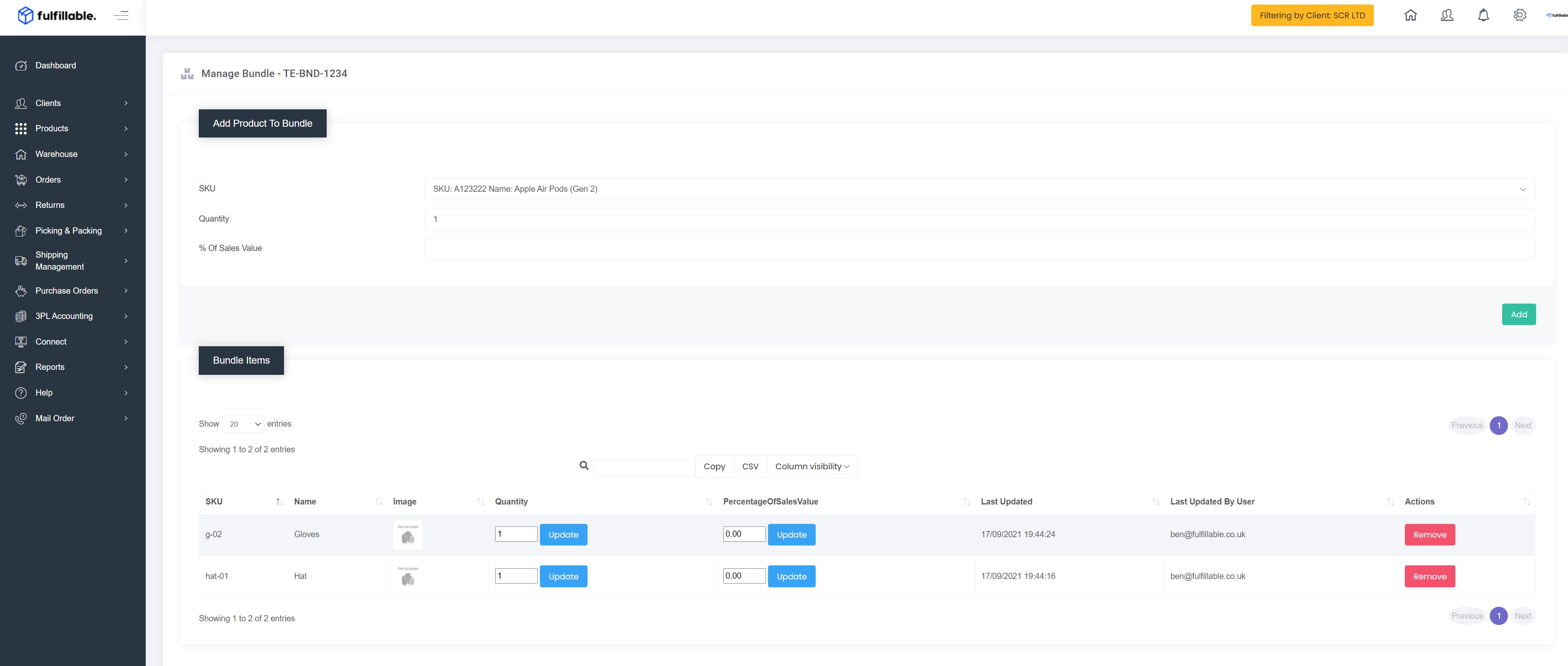
On the "Manage Bundle" page, search and add products that you wish to be contained in the bundle. You can also specify the quantity of each product that should be contained in each bundle.
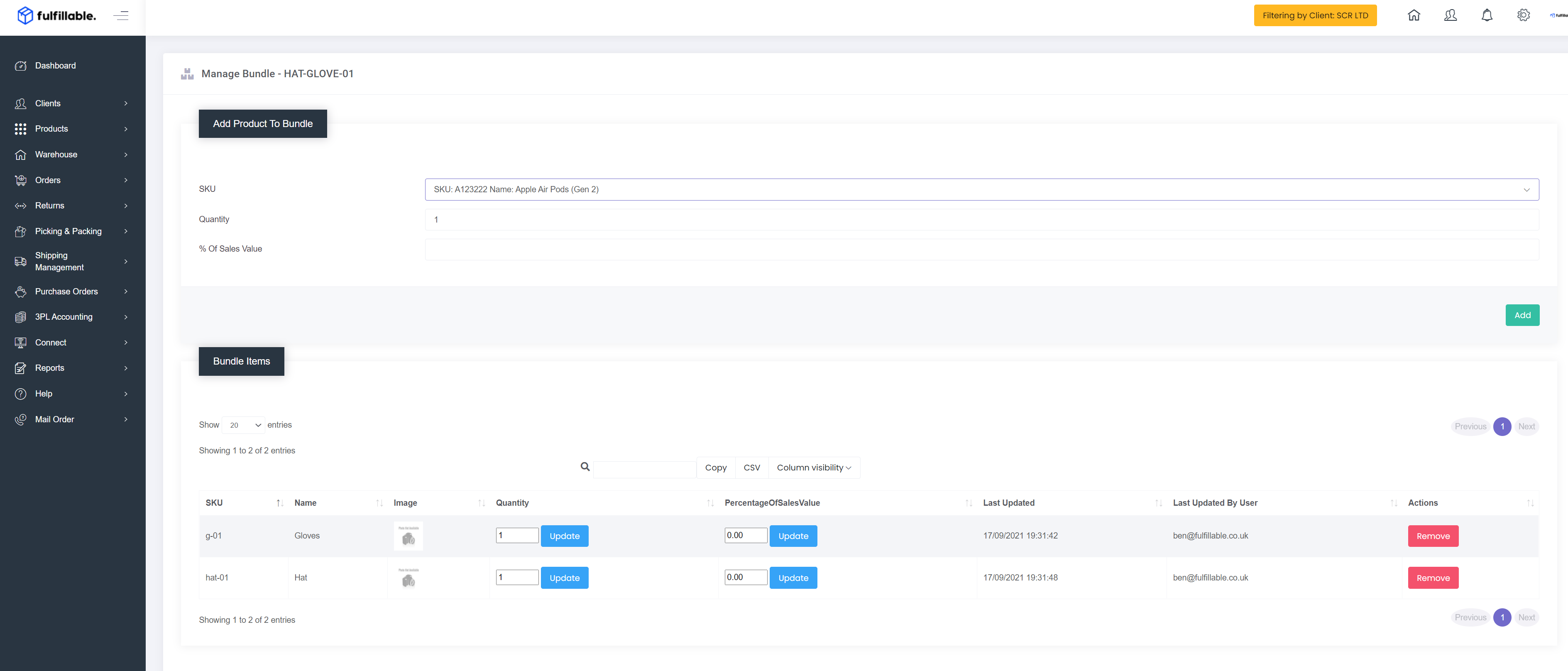
The bundle is now created, and the bundle stock levels will publish to your eCommerce store or marketplace(s). There is no need to save as every time you add or update a product the page is saved automatically.
Creating A Bundle Manually
Use this method to create a bundle if you wish to create it on Fulfillable first before adding it to your online store. Once you are ready to add it to your store make sure to copy the bundle SKU and use this as the SKU on your channel for the bundle.
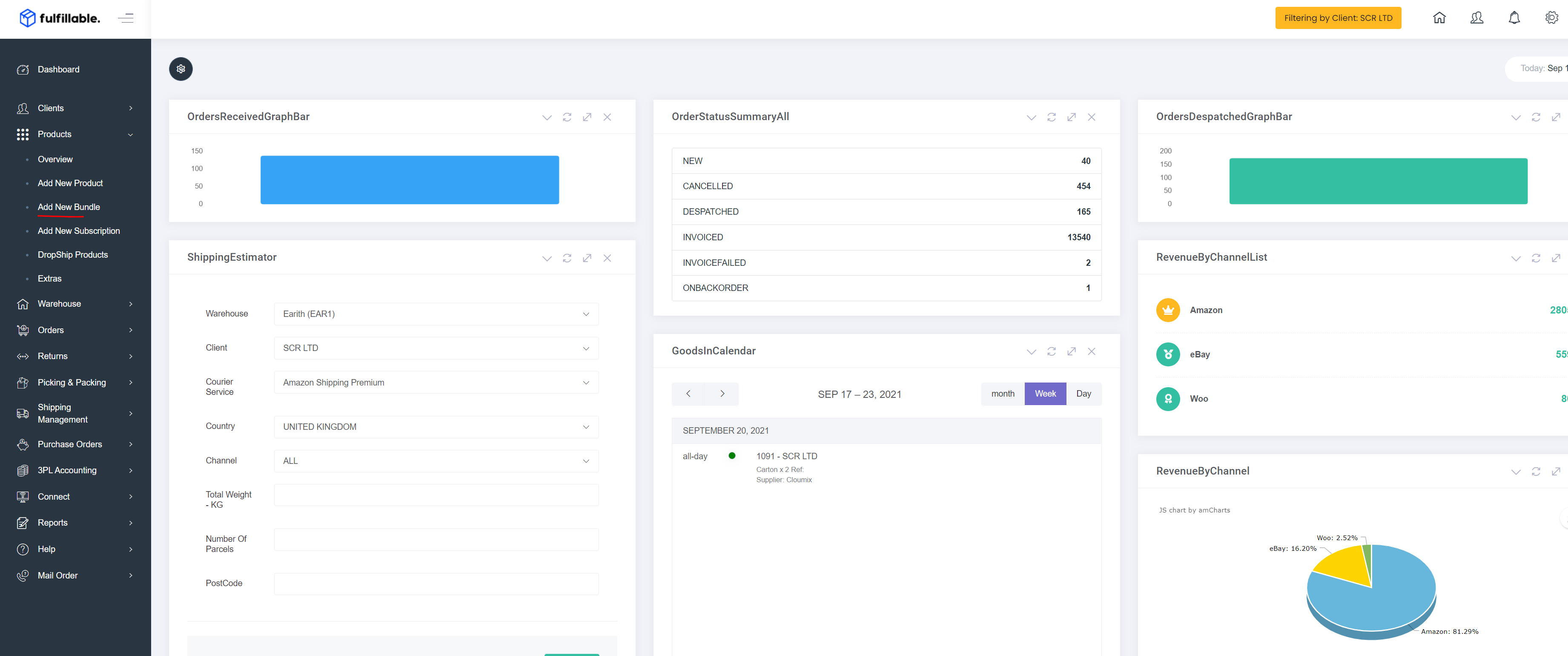
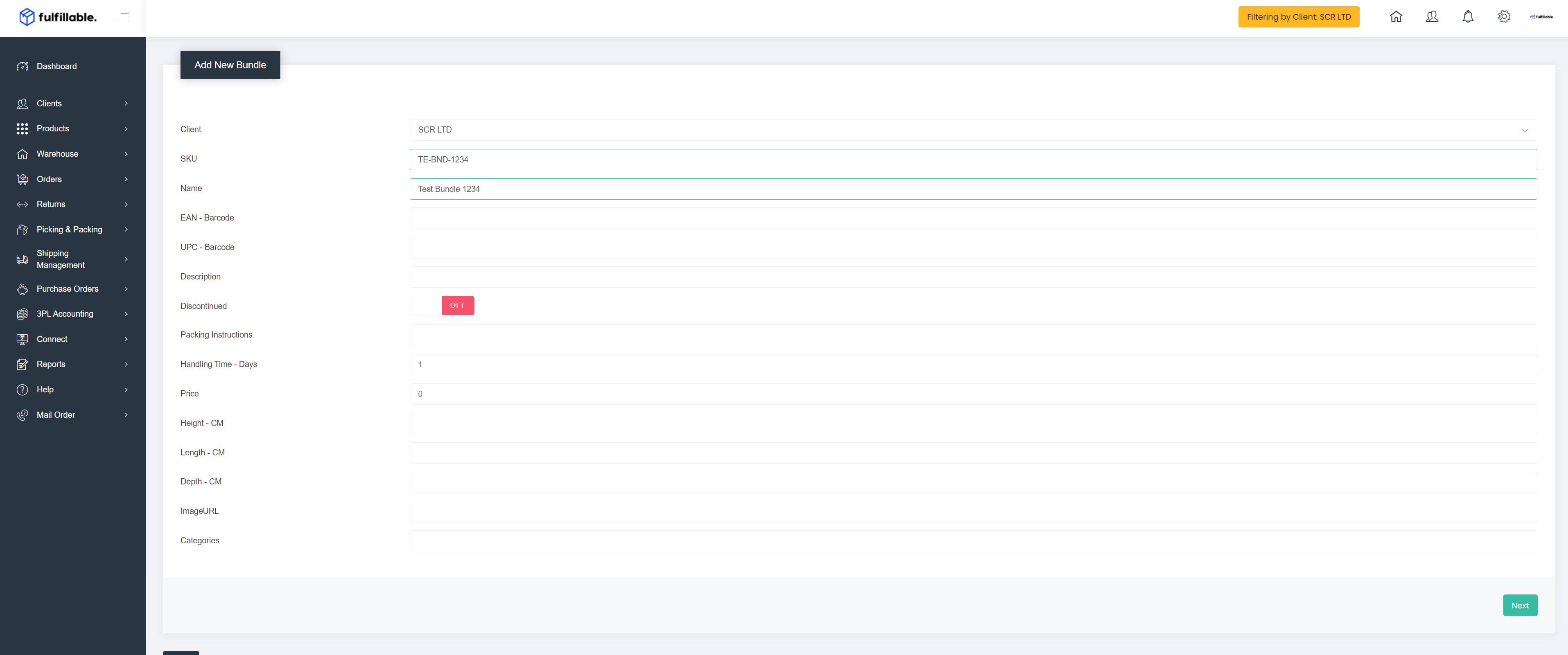
From your dashboard, navigate to Products>Add New Bundle
On the bundle page it is only necessary to fill in the:
- Name
- SKU
You can fill in other info but it is optional, barcodes are not required for bundle products as the individual items have their own barcode. When finished click "Next"
Now add the items and quantity of each to the bundle, this allows the system to automatically break down every bundle into its actual contents. Be careful to ensure the correct items and quantities are contained as we will automatically ship what you select on this page.
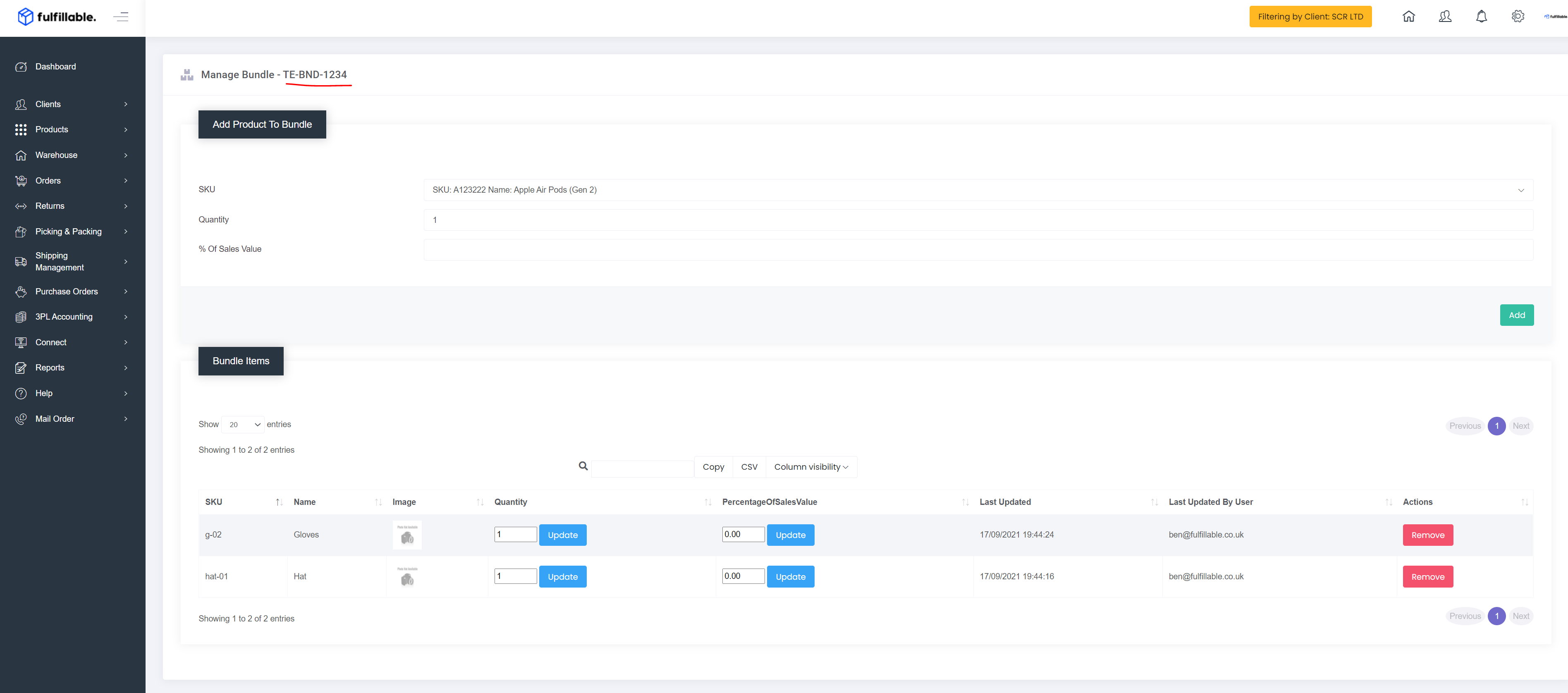
When you are happy with the bundle contents be sure to take the SKU displayed at the top left of the page, you can use this later to add the bundle SKU to your channel.
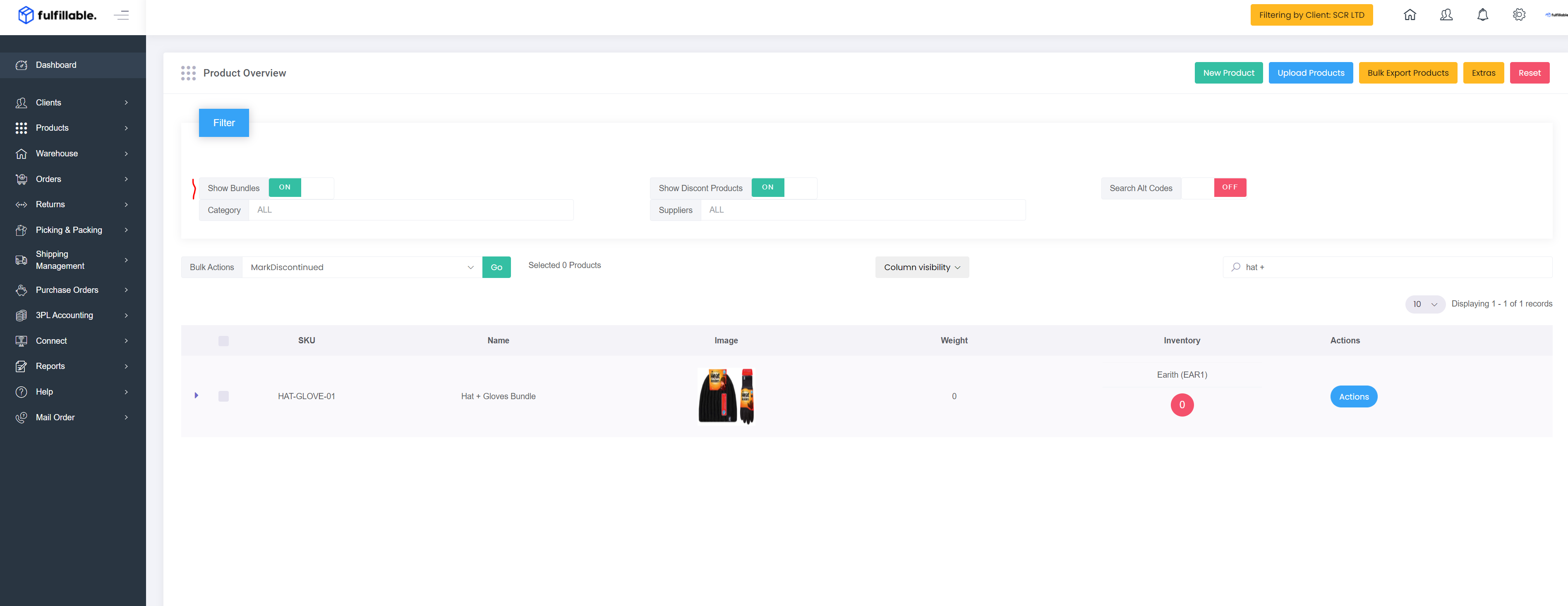
If you ever to find your product bundles, from your dashboard navigate to Products>Overview then make sure to enable the "Show Bundles" toggle and your bundle products can be found from search.
Comments
0 comments
Please sign in to leave a comment.