Overview
- Use Drop Ship products for items you wish to fulfil externally from Fulfillable
- We will not manage inventory or import Drop Ship products
- Orders containing Drop Ship products will be split
Explanation
When you add a Drop Ship product, this means that we will ignore those products and they will not be dispatched or be managed by Fulfillable.
We can also send an alert if an order containing a Drop Ship product is created to a Drop Ship supplier.
The system can create multiple Drop Ship suppliers and groups of products can be allocated to each supplier.
If an order contains two or more products and at least one product is fulfilled by Fulfillable then the system will automatically split the order and we shall dispatch the managed product(s) only.
Please note Drop Ship product orders are not currently supported by: NOTHS or Etsy.
Setup
Firstly you need to add Drop Ship suppliers, you can do this by navigating to Products>Drop Ship Products.
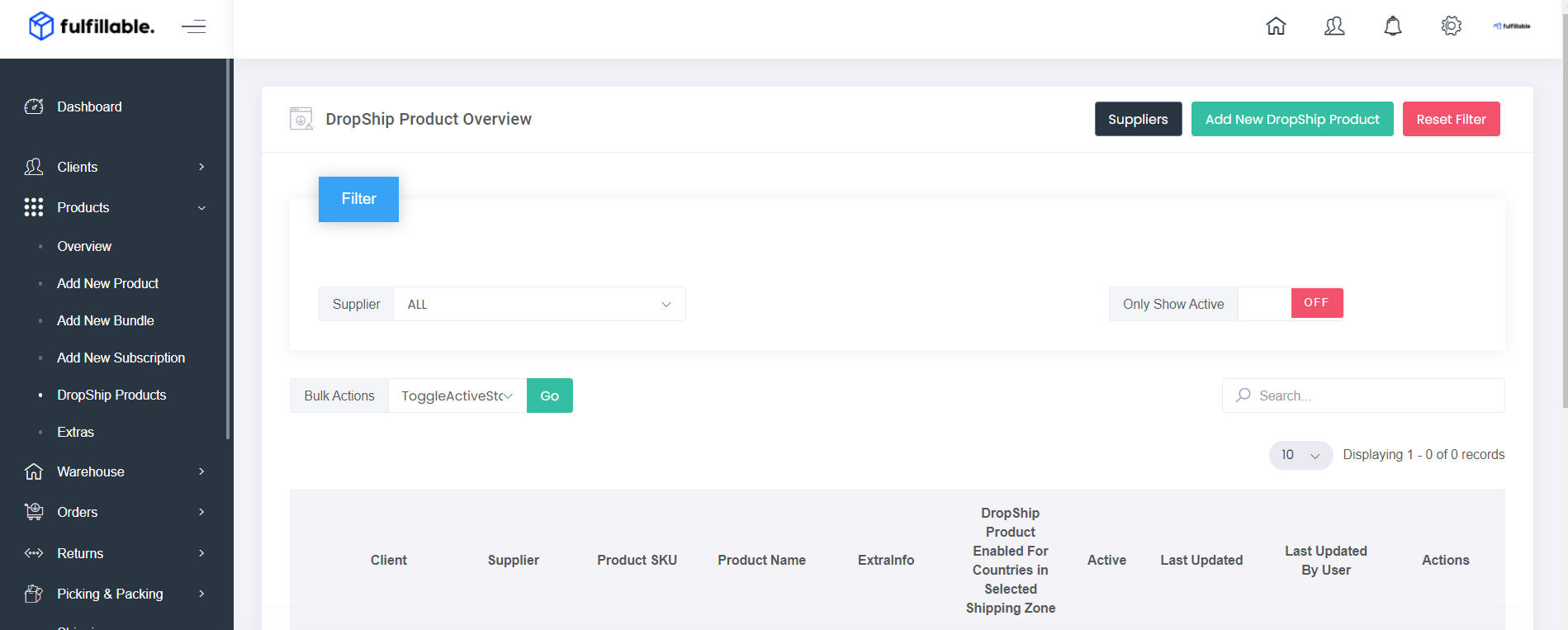
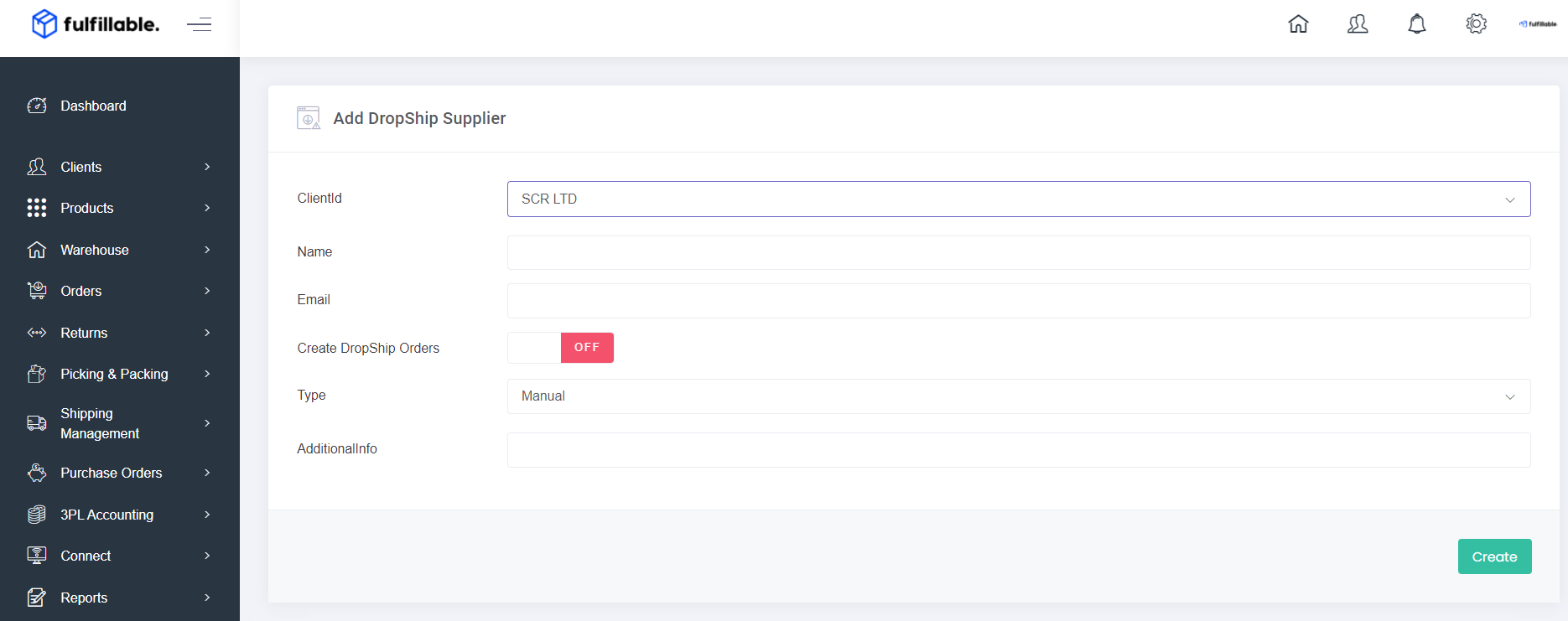
Then click "Suppliers" and then "Add Supplier". You can now fill in the supplier info. If you wish for the supplier to receive email alerts - please make sure to enter their email. Please toggle "Create Drop Ship Orders" to Enabled.
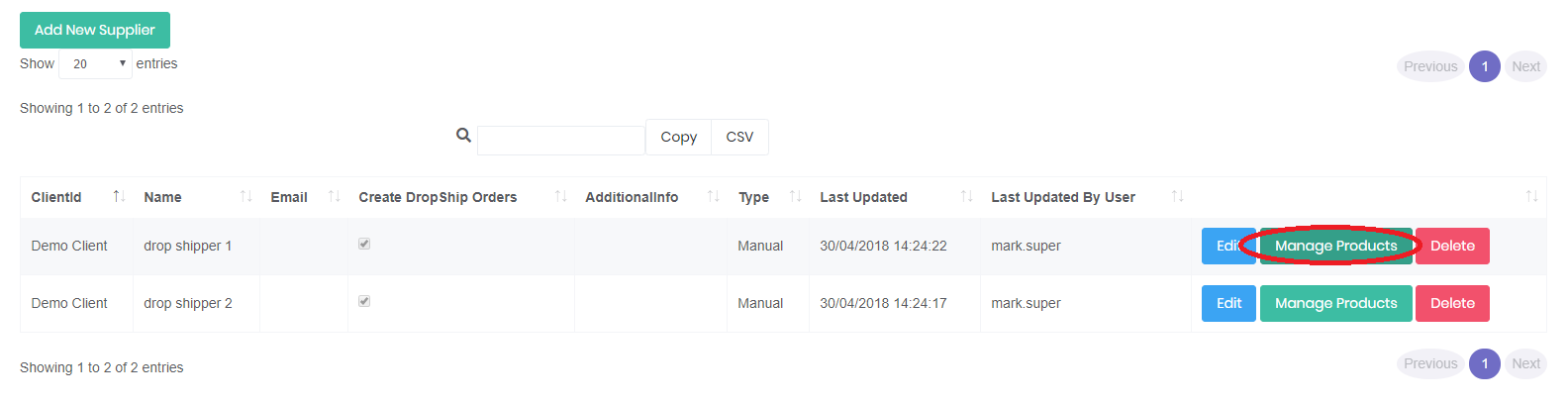
Now you have added the supplier you can click the green "Manage Products" button to allocate products to them.
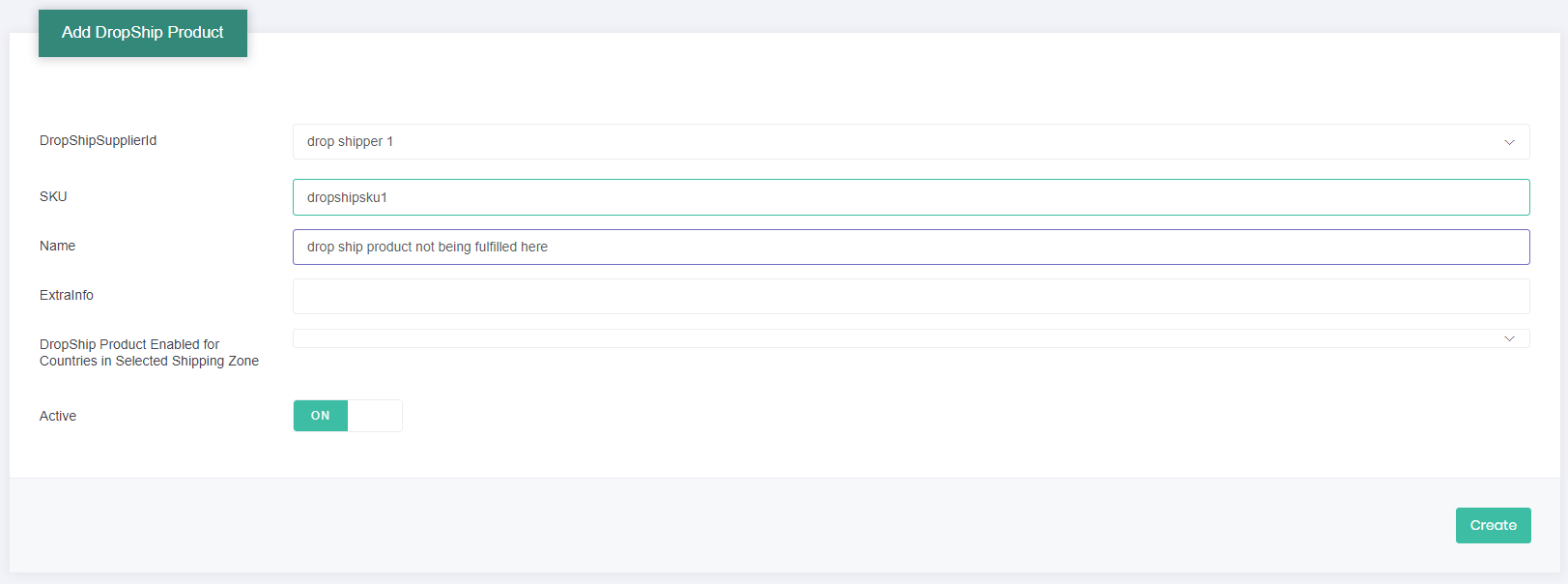
Click "Add New Product" you can now enter the product name and SKU. Use the toggle to activate the Drop Ship product. You can also turn this off in the future if needed.
If things change in the future and you need Fulfillable to start fulfilling these products you can easily mark a supplier as inactive.

Adding Drop Ship Products In Bulk Via CSV
Please make sure you have added your suppliers first by following the steps above.
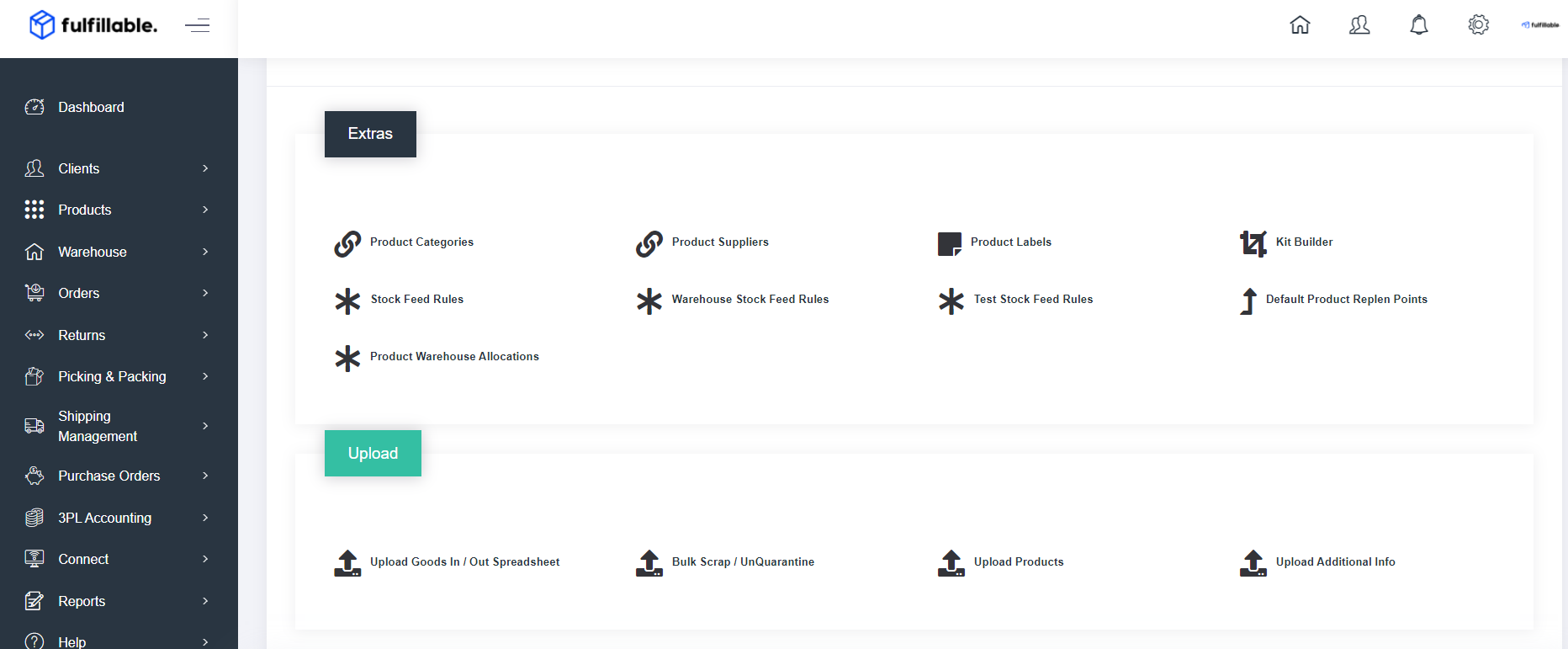
You can then upload Drop Ship products in bulk by going to Products > Extras > Upload Additional Info.
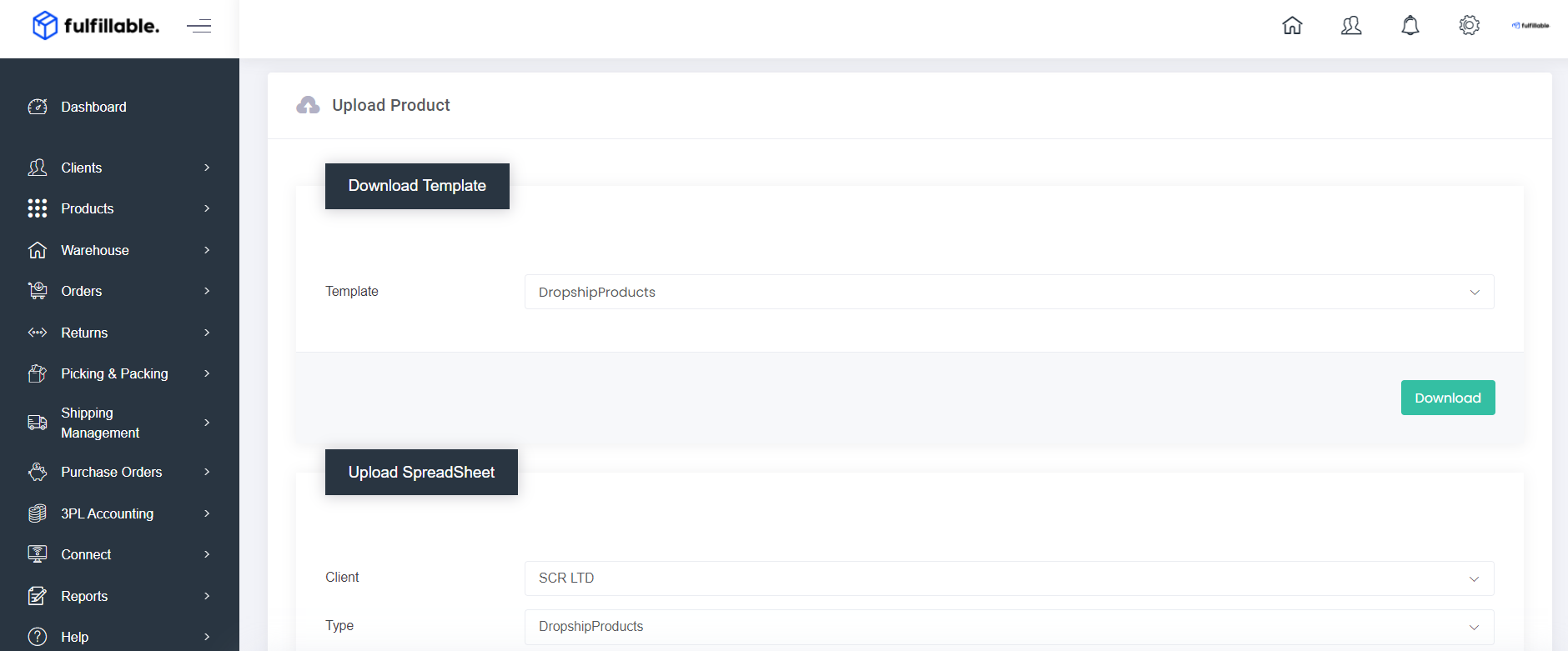
Download the template, enter the data, save and then upload using the lower half of the page.
Comments
0 comments
Please sign in to leave a comment.