Overview
- Manually add products if you do not want to import products from your channels
- Add a product that you want to be ready for fulfilment but don't want to add to your channel yet
How To
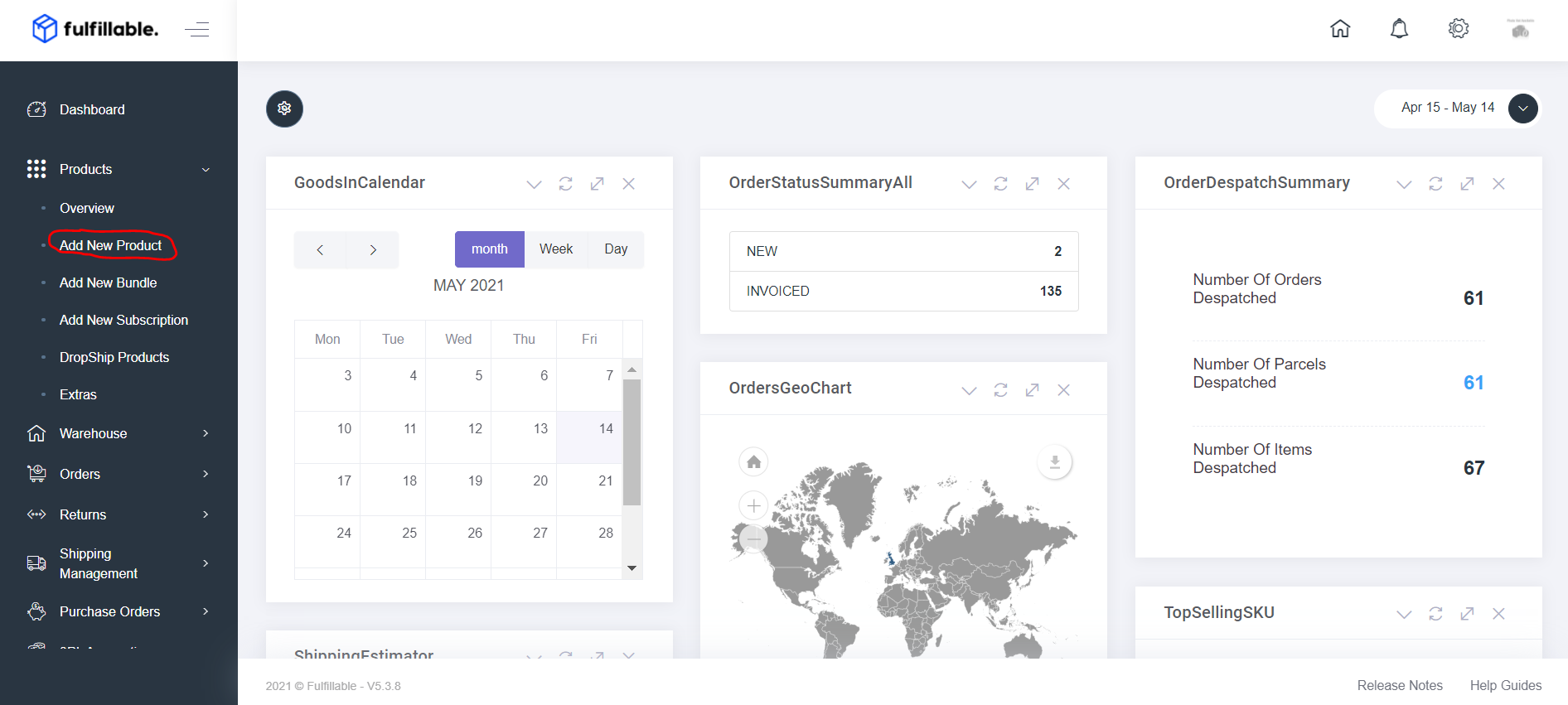
1) From your Fulfillable Dashboard navigate to Products>Add New Product
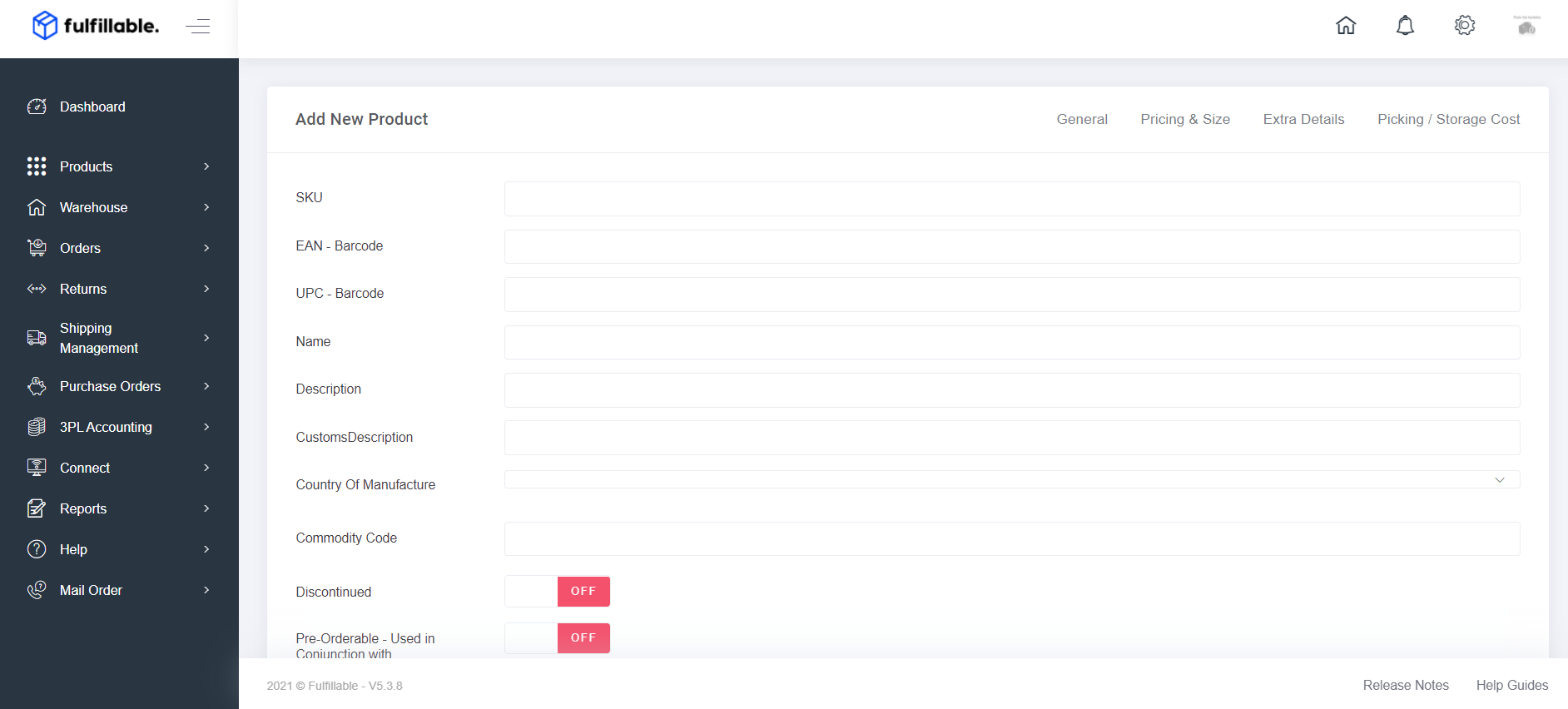
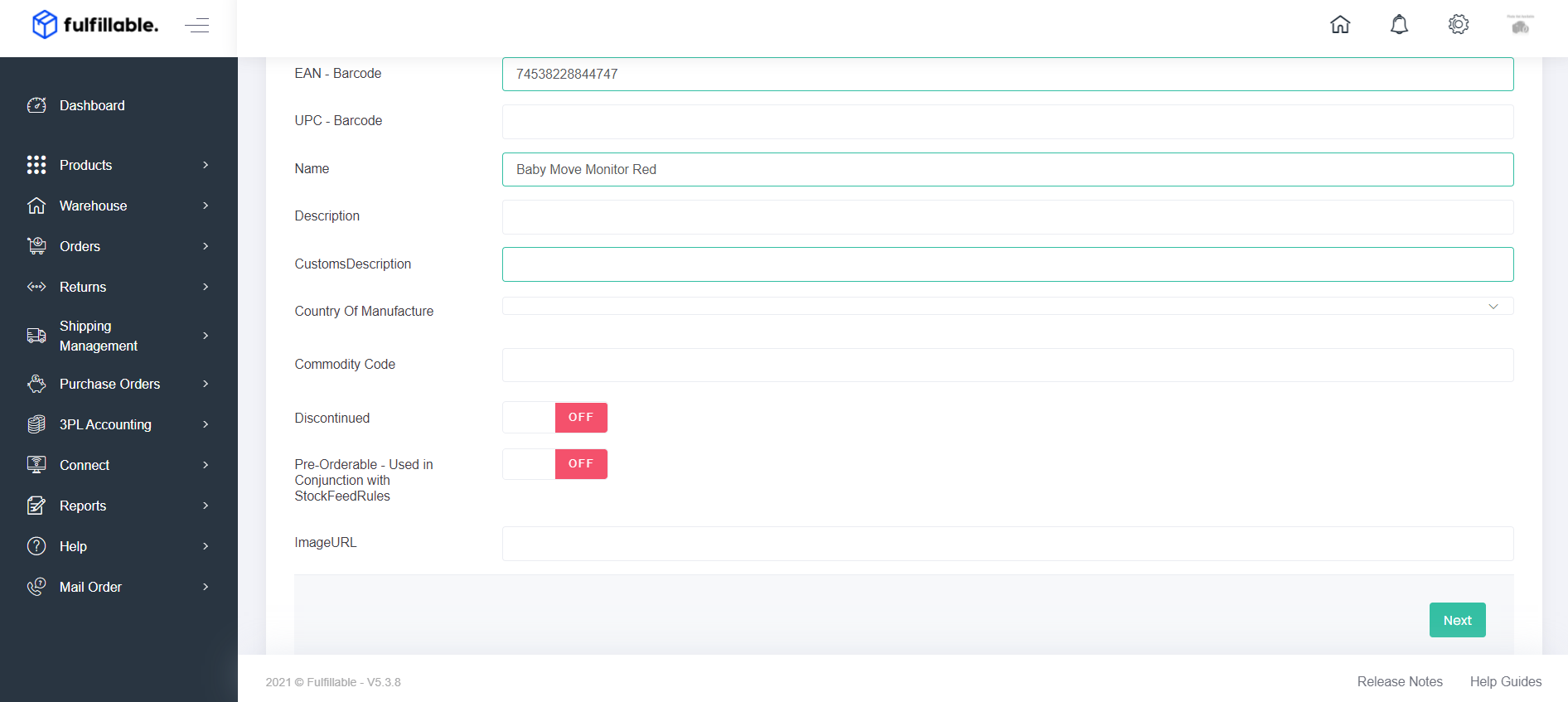
2) General at a minimum you must fill in the "Name" and "SKU" field for the product to be created. You can add the EAN or UPC later if you don't have it yet.
- SKU - Stock Keeping Unit (If you add the product to a channel later you must use the same value)
- EAN - Barcode (You can obtain these from the manufacturer or GS1 if you manufacture your own products)
- UPC - Barcode (You can obtain these from the manufacturer or GS1 if you manufacturer your own products)
- Name - The name of the product
- Description - Optional
- Customs Description - Optional
- Country Of Manufacture -Optional
- Commodity Code - Required if sending internationally
- Discontinued - Only mark if you want the product hidden from your list
- Pre-Orderable - Recommend to keep enabled
- Image URL - If you have the image hosted on an external website you can paste the image URL here
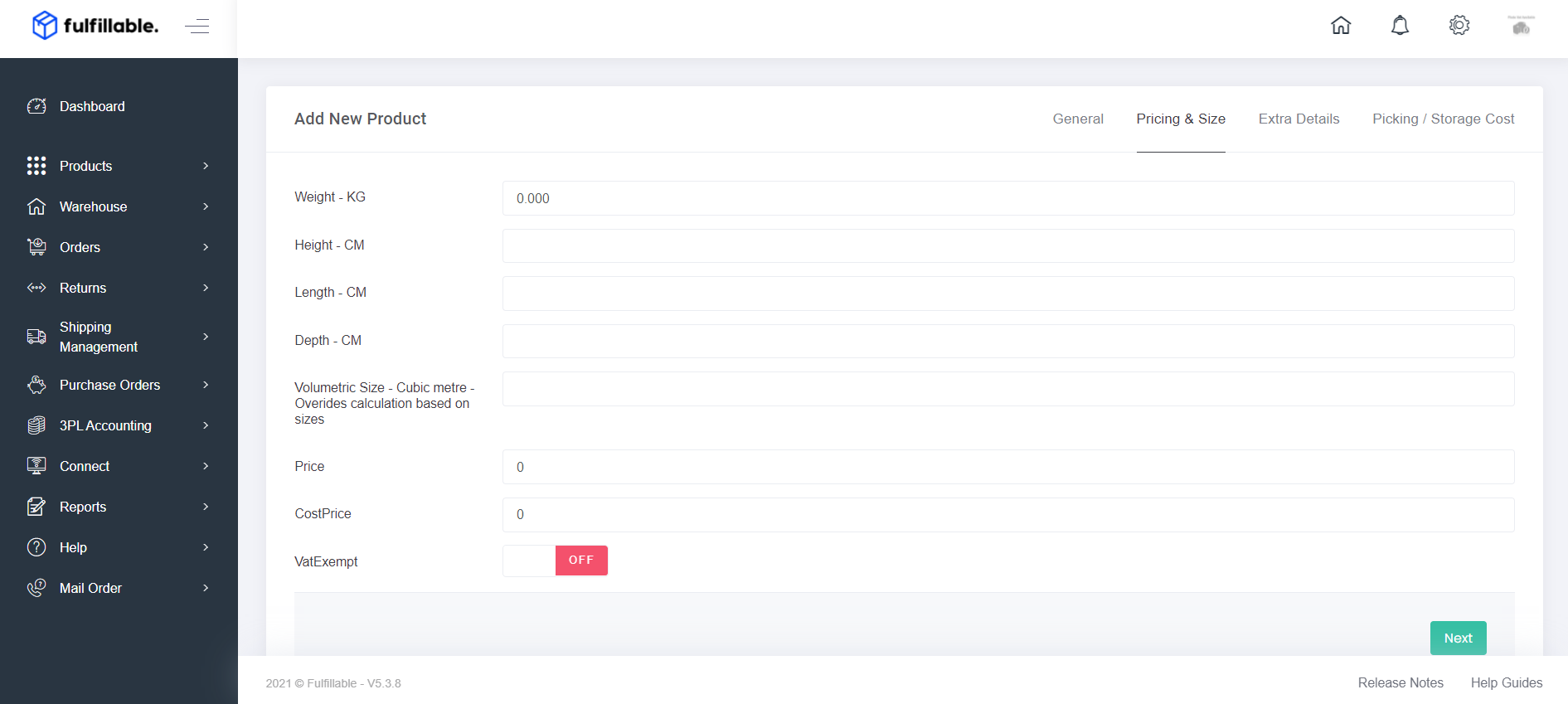
3) Pricing And Size (Optional) we recommend filling in the cost price and price options for reports and manual orders.
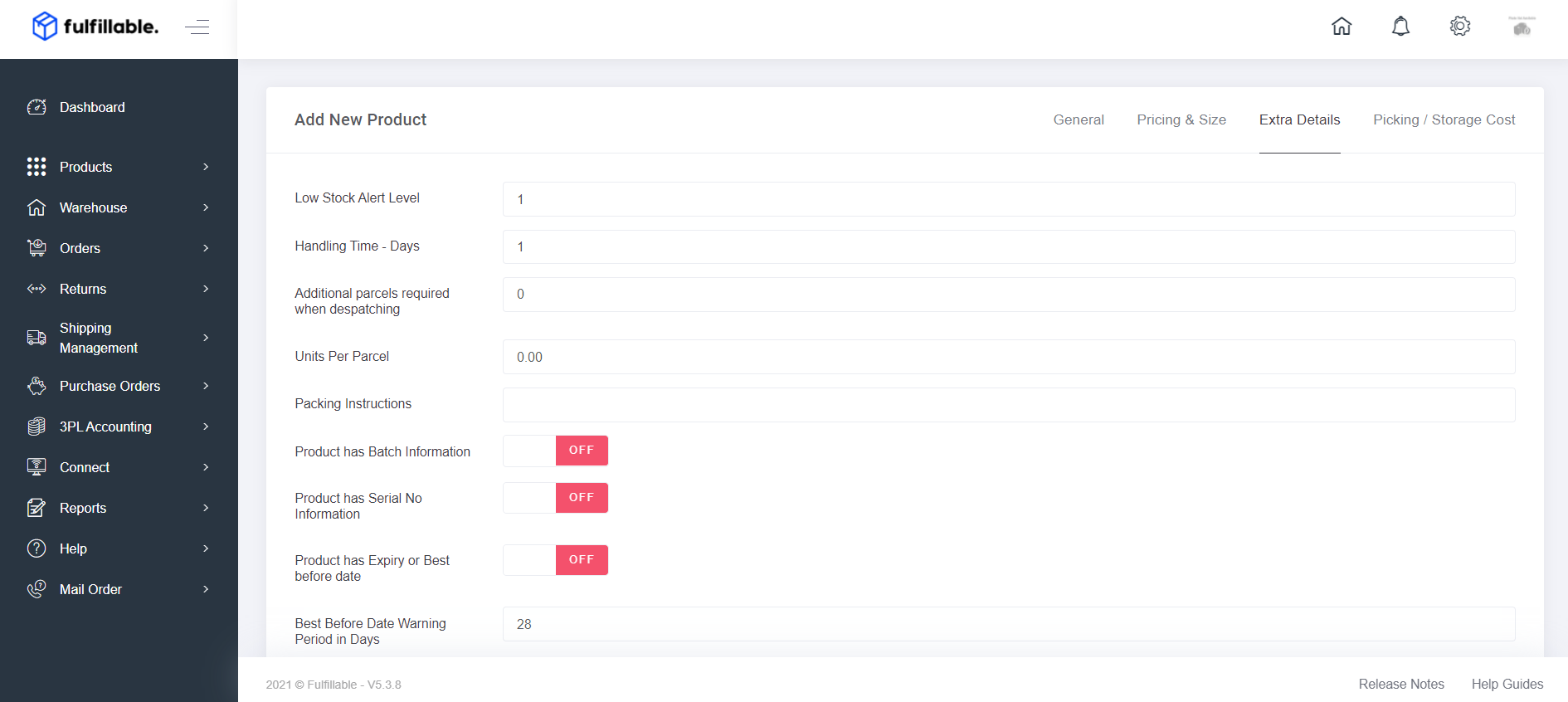
 4) Extra Details (Optional) if using low stock notifications we recommend setting the low stock alert level here.
5) Click the green "Next Button" and the product will be created.
Comments
0 comments
Please sign in to leave a comment.