Integration Summary
- Exports 3PL Invoices to Xero with ledger mapping
Settings Changes
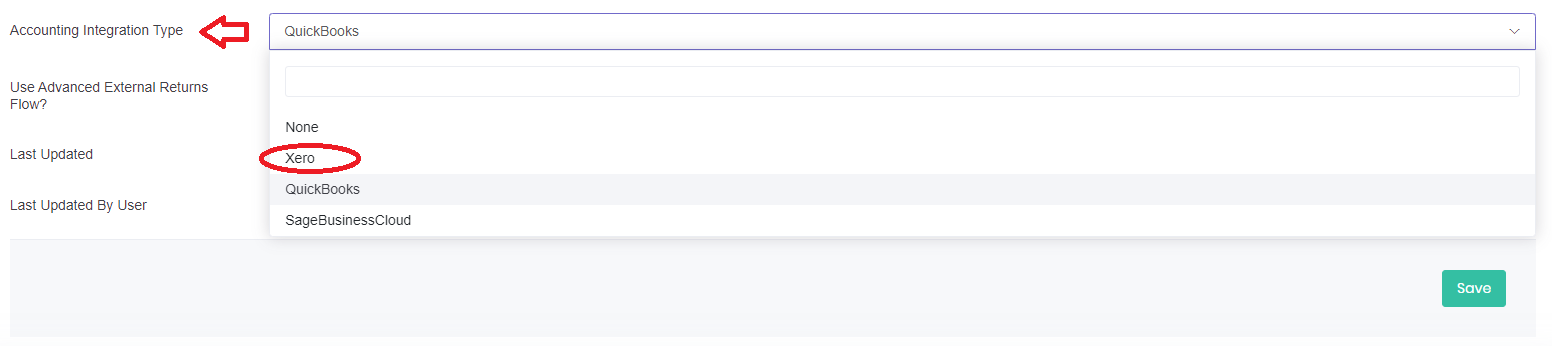
Please go to Settings > Customer Account Settings and change accounting integration type to Xero:
 Setup Connection
Navigate to Connect > Accounting > Xero
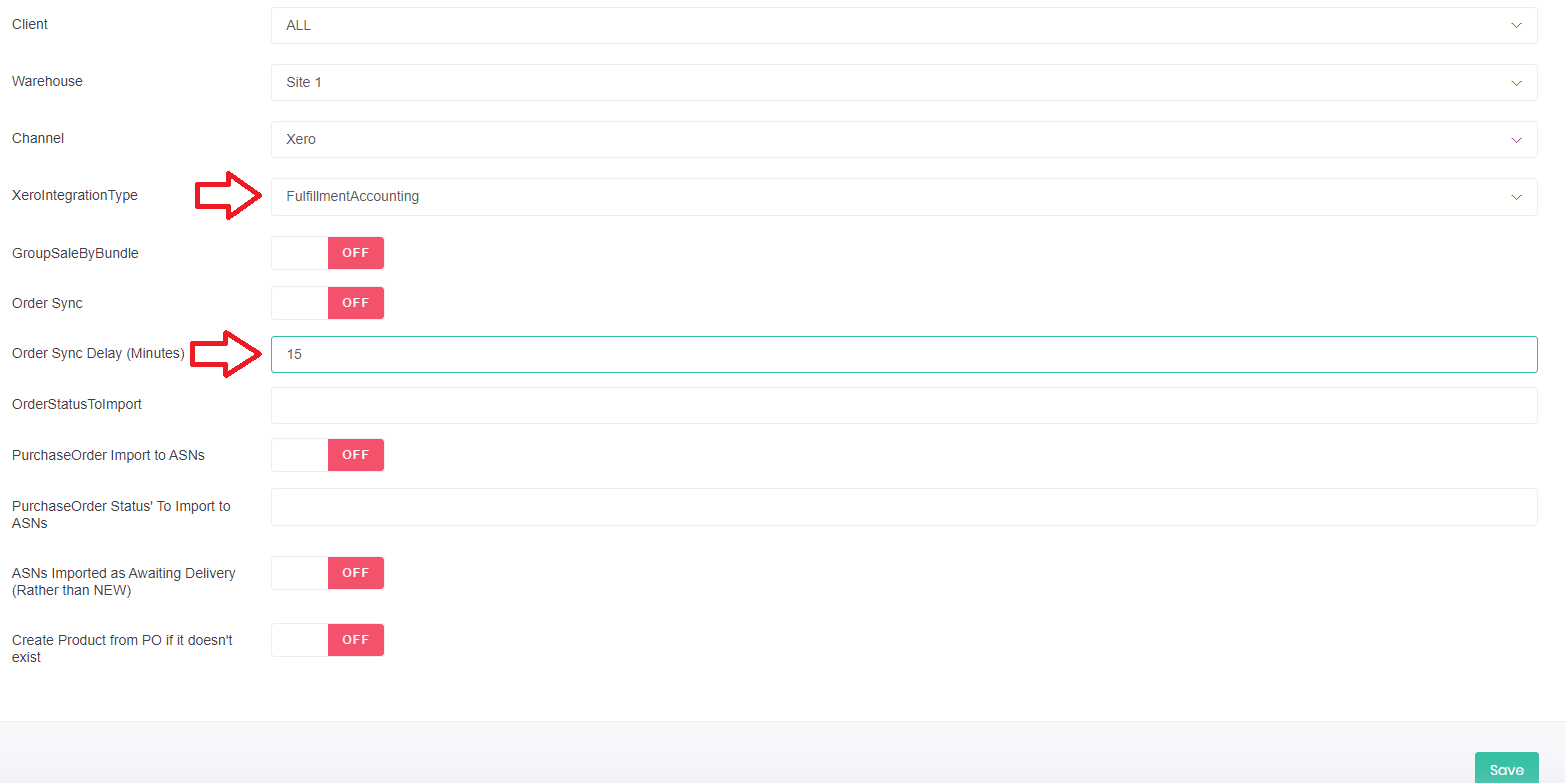
Add a new account and leave all fields blank except delay - please enter a value here of 15.
Please also choose the type of the Xero connection to Fulfilment Accounting
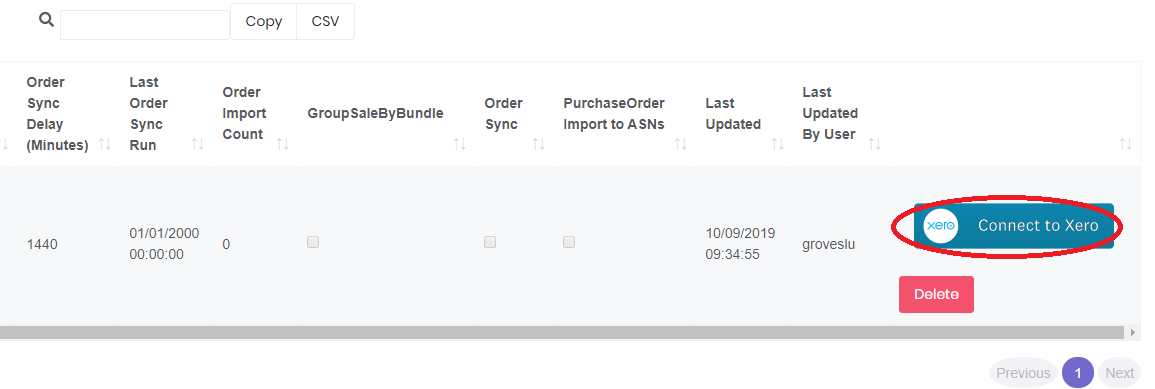
Once created - hit the Connect to Xero Button. Please Note: In order to Connect to Xero, you must be using the https://fulfillable.co.uk/ URL. This will not work when using a custom portal.
And then hit allow access:
Set Default Income Account
Once the connection has successfully authorised - edit the connection in Fulfillable and check the default income account is correct for your sales (sales will get posted here if we do not find an item code already setup)
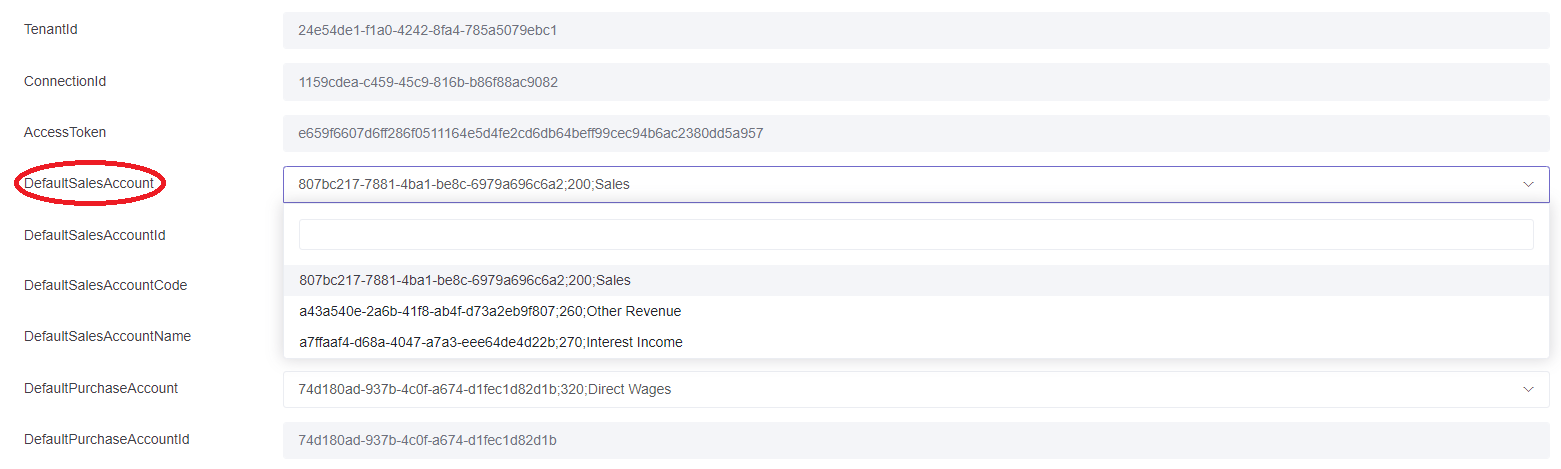
Then hit save.
Contact Setup
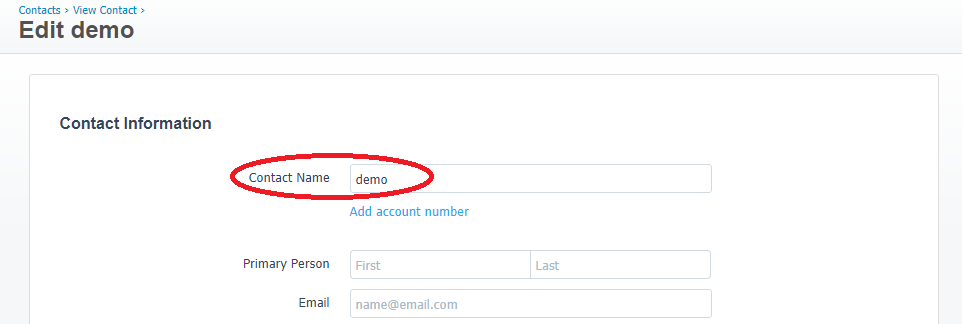
Before connecting to Xero - please make sure your contact names on Xero match the Fulfillable client name exactly, if they do not match exactly then the integration will not be able to post invoices to Xero.
Fulfillable:

Xero:
Invoice history
Ledger Account Mapping
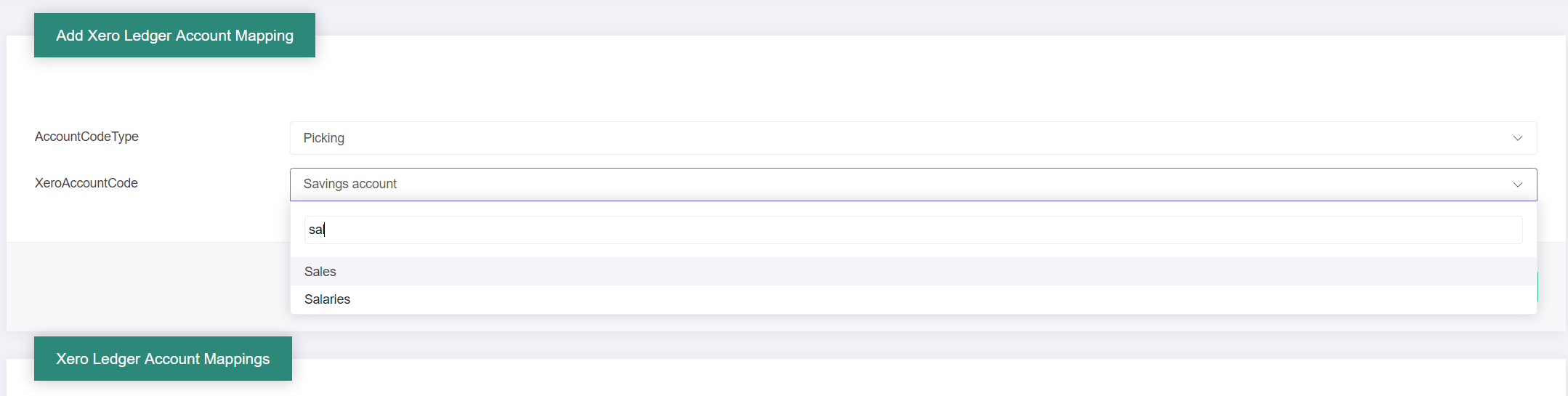
To map the Fulfillable charging areas to specific sales ledger accounts on Xero, navigiate to Connect > Accounting > Xero > Account Mappings

Then map the charging areas to the relevant Xero ledger accounts:
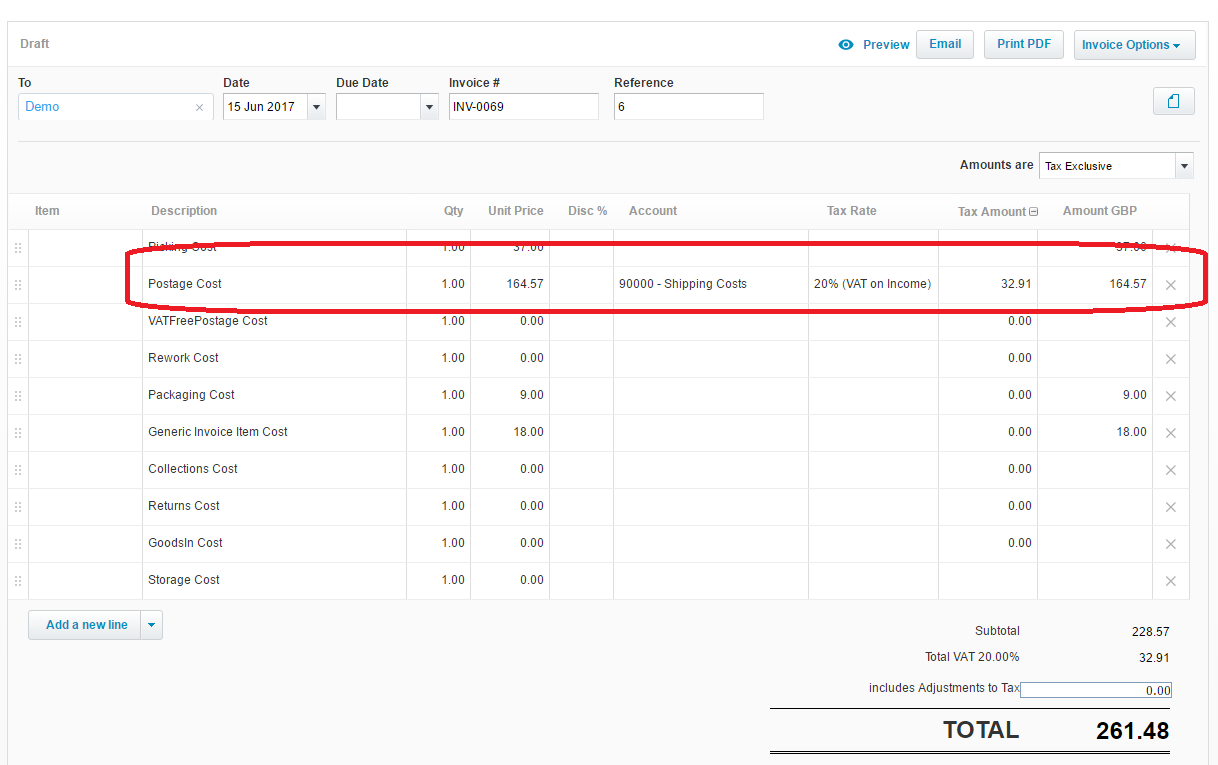
Now when you create the invoice in Xero any accounts you have mapped will show on the draft invoice created:
Creating Xero Invoice
Once Xero is connected the process to create an invoice is very simple, just confirm the invoice in Fulfillable as normal then click create invoice in the top right:
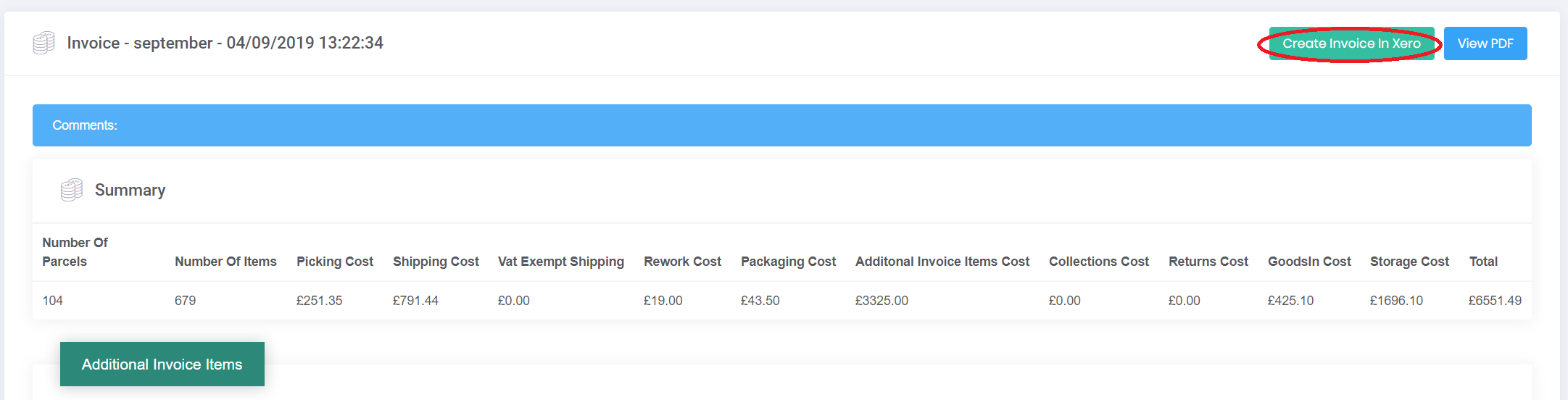
You can also view historical invoices in Xero directly from the confirmed invoice section.
Comments
0 comments
Please sign in to leave a comment.