Overview
- Using Purchase Orders completely automates your stock movements between supplier & warehouse.
- You can create ASNs directly from Purchase Orders saving the need to enter the same data twice.
- Once a purchase order has been created you can view the inbound stock on the product overview page.
Creating A PO
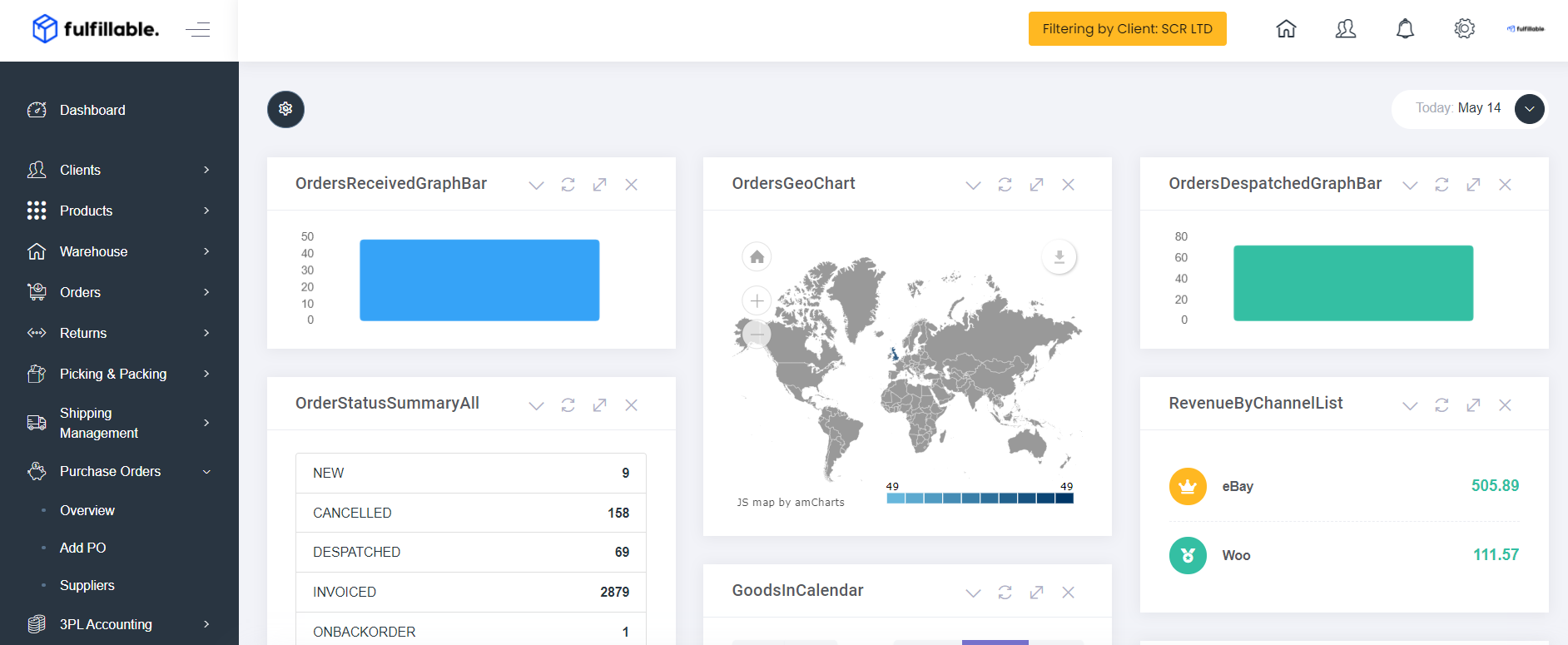
1) From your Fulfillable dashboard navigate to Purchase Orders>Add PO
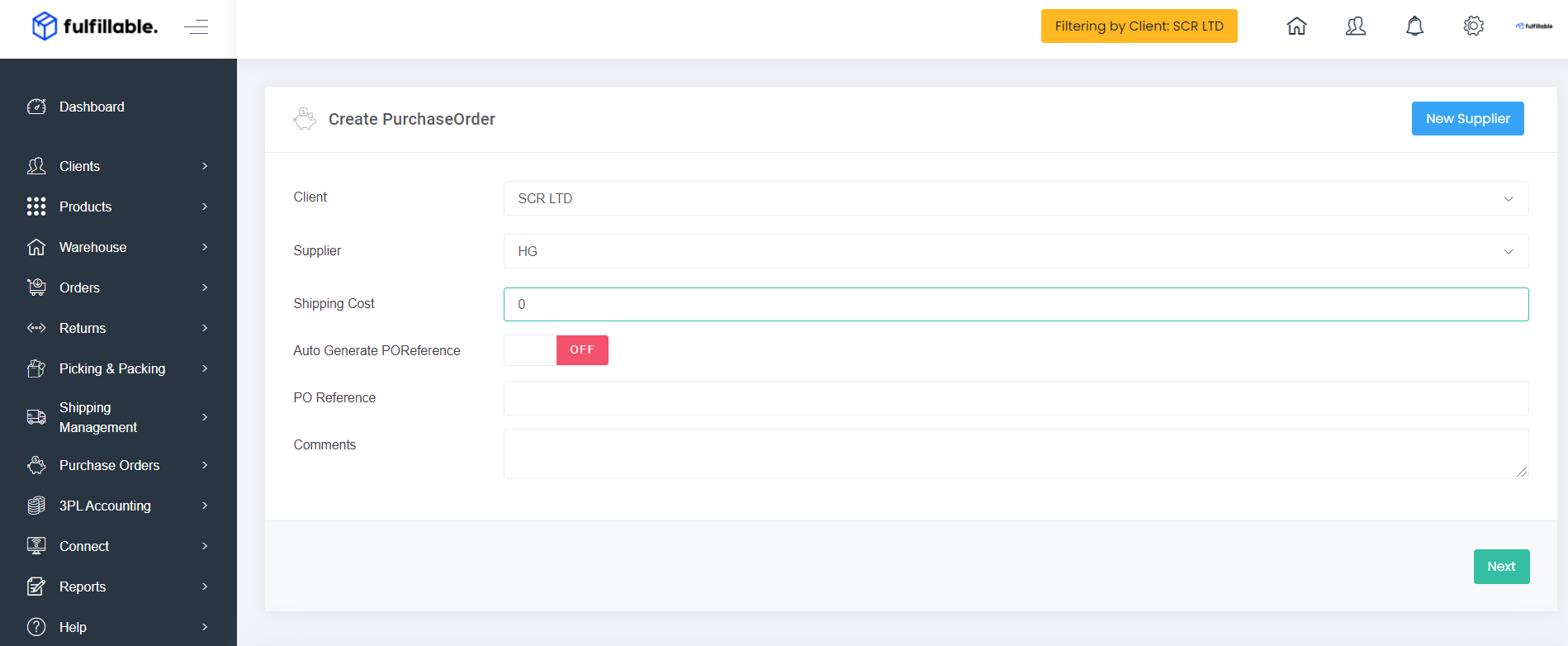
2) Fill in the required info
- Supplier (Add A New Supplier From Purchase Orders>Suppliers)
- Shipping Cost (If applicable)
- Auto-Generate PO Reference (Turn this on if you want a reference number created or enter your own)
- Any comments for your own reference
Click the green "Next" button
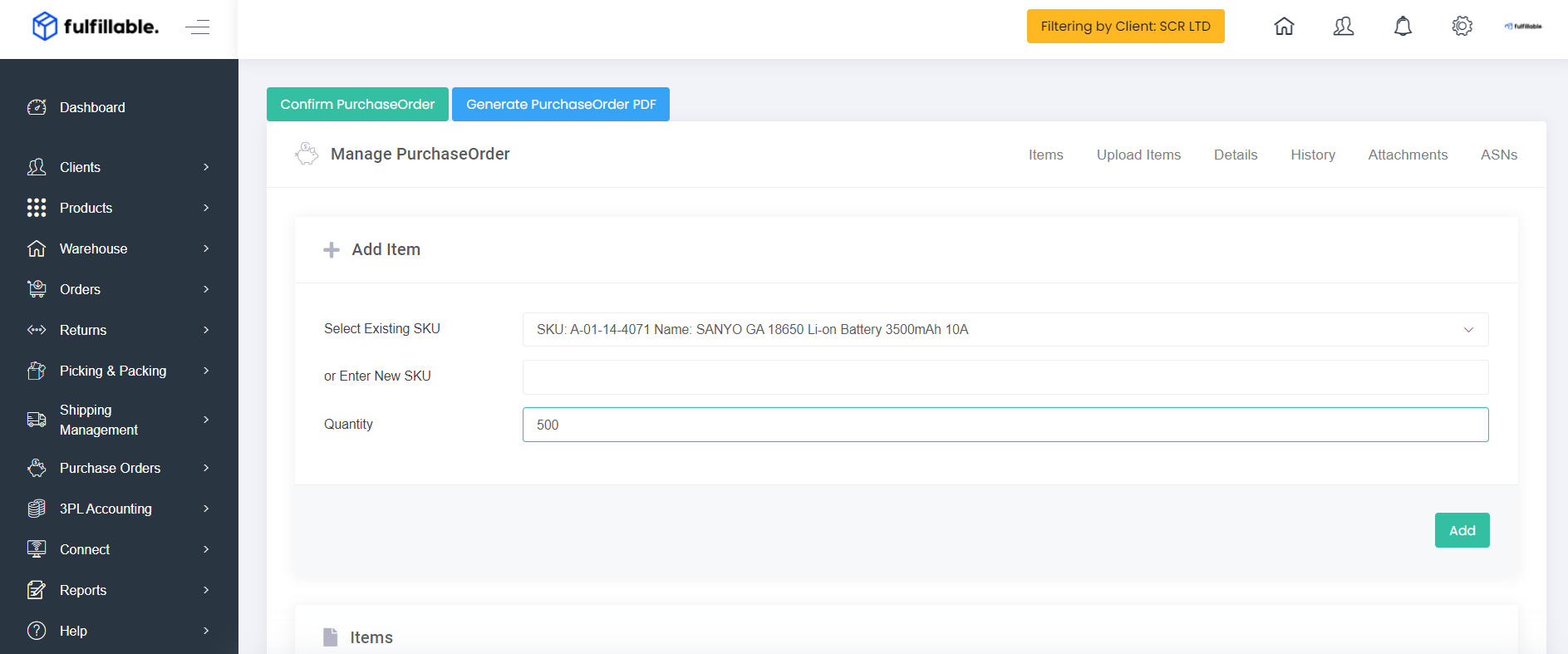
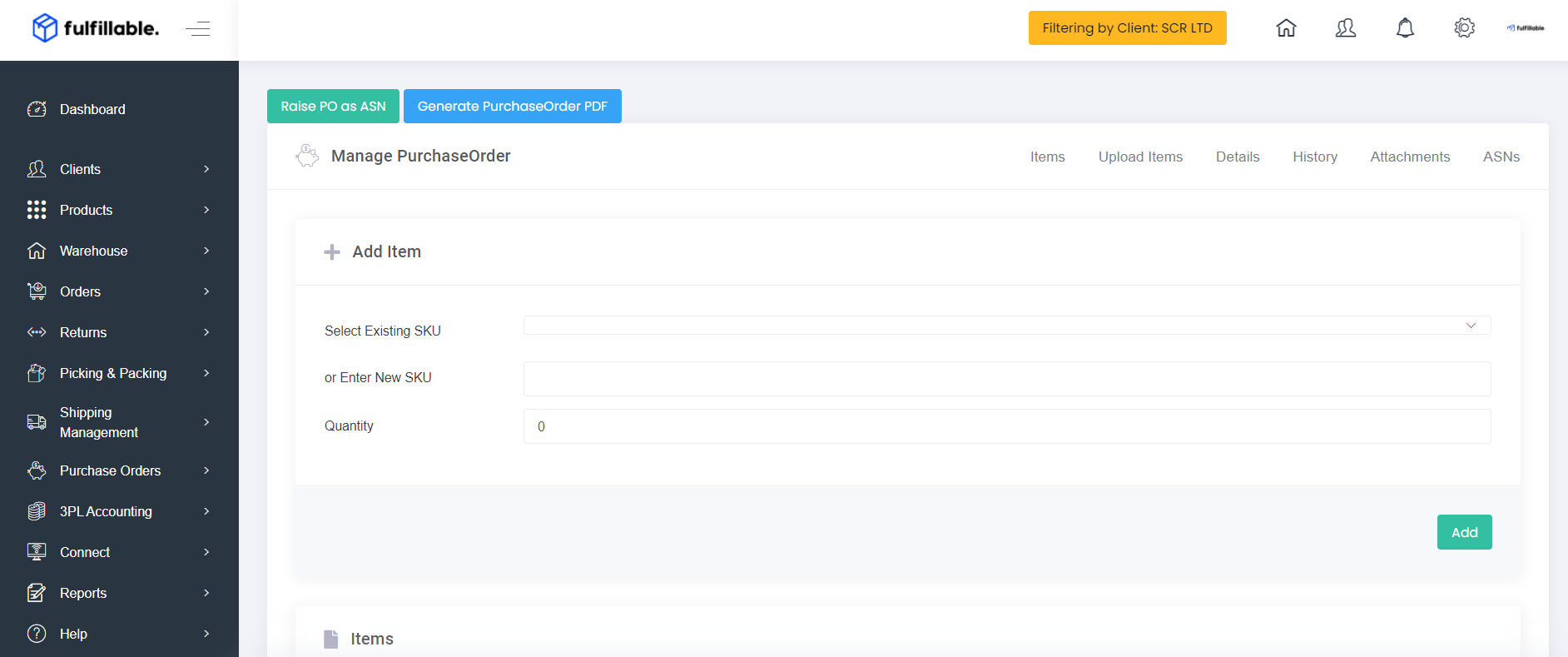
3) Add the required items and quantities you wish to replenish from your suppliers.
4) Once you are happy with all of the quantities and items click the green "Confirm Purchase Order" button.
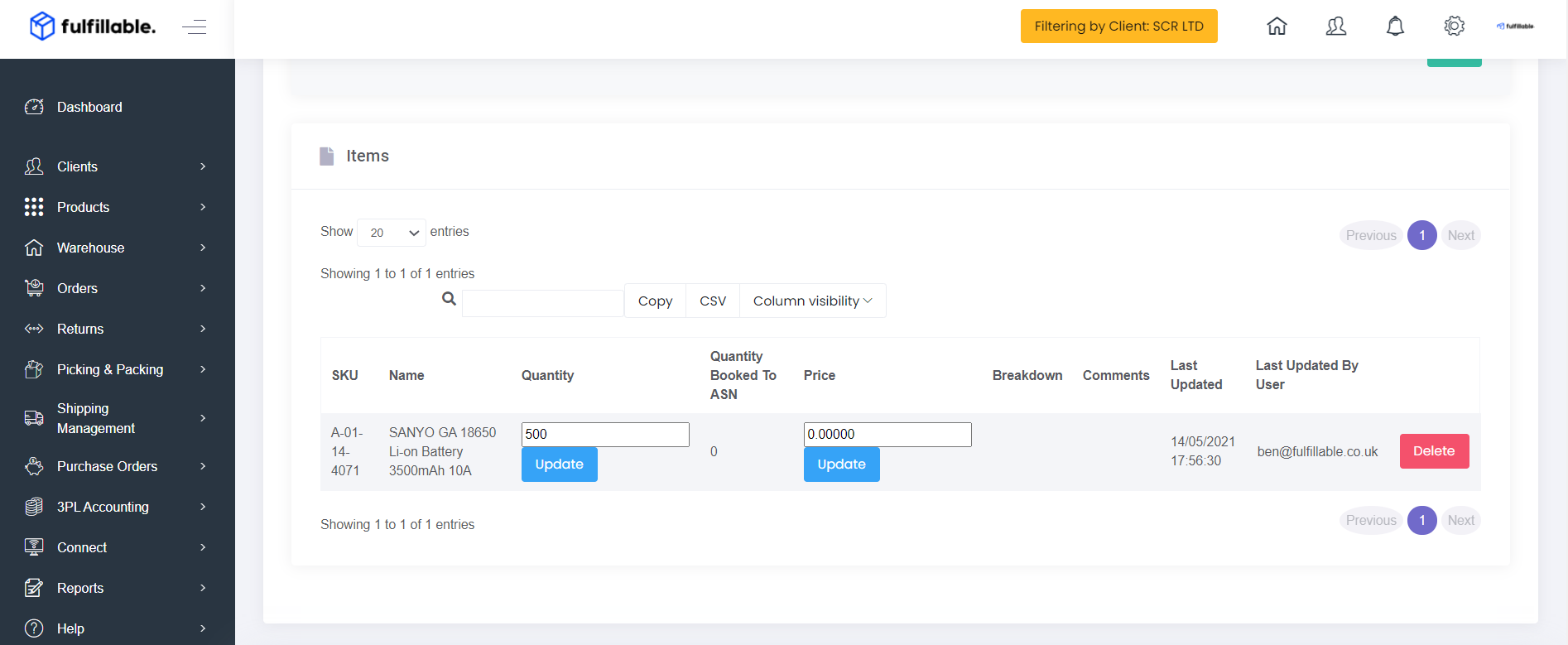
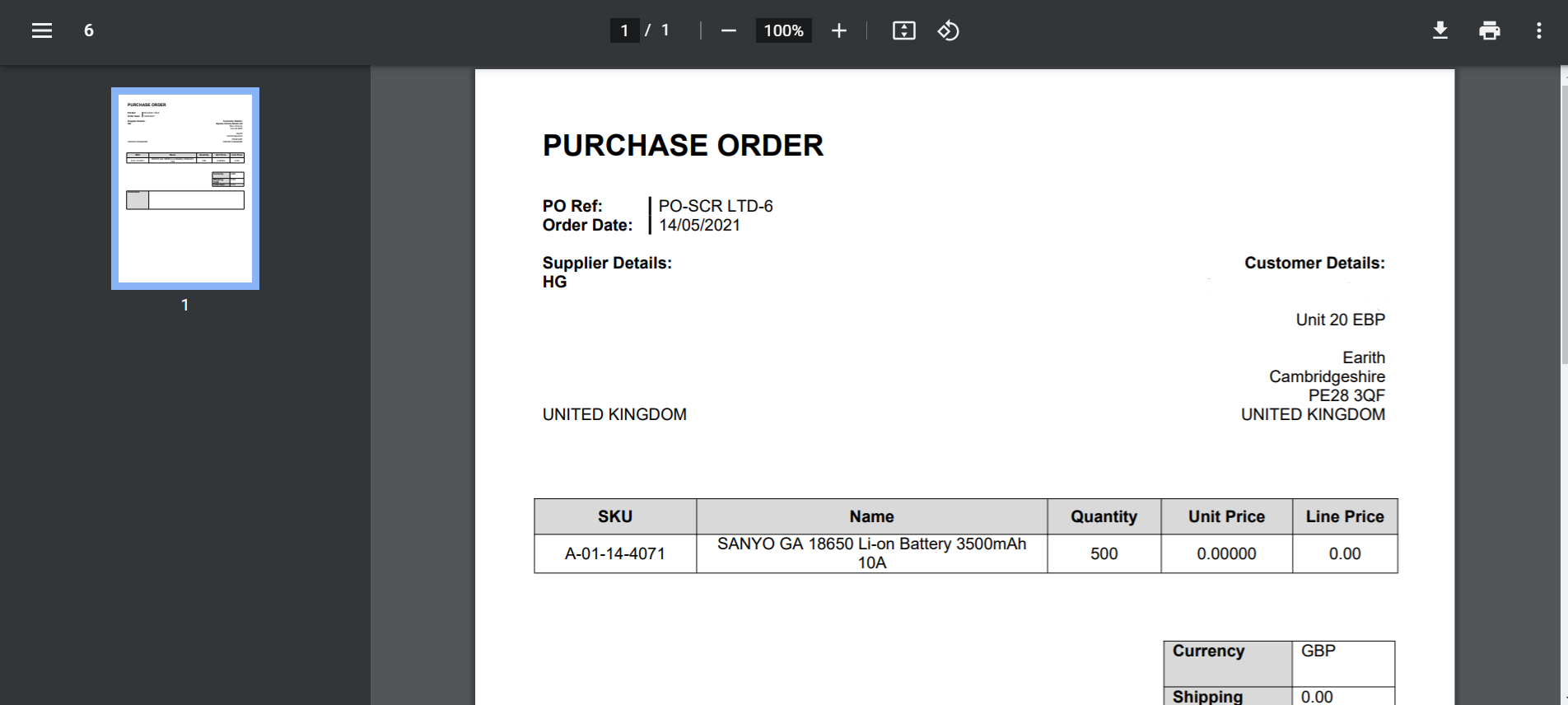
5) You can now generate the PDF by clicking the blue "Generate Purchase Order" button.
6) You can now send the completed PO document to your supplier so they can arrange your goods.
Creating an ASN from a Purchase Order
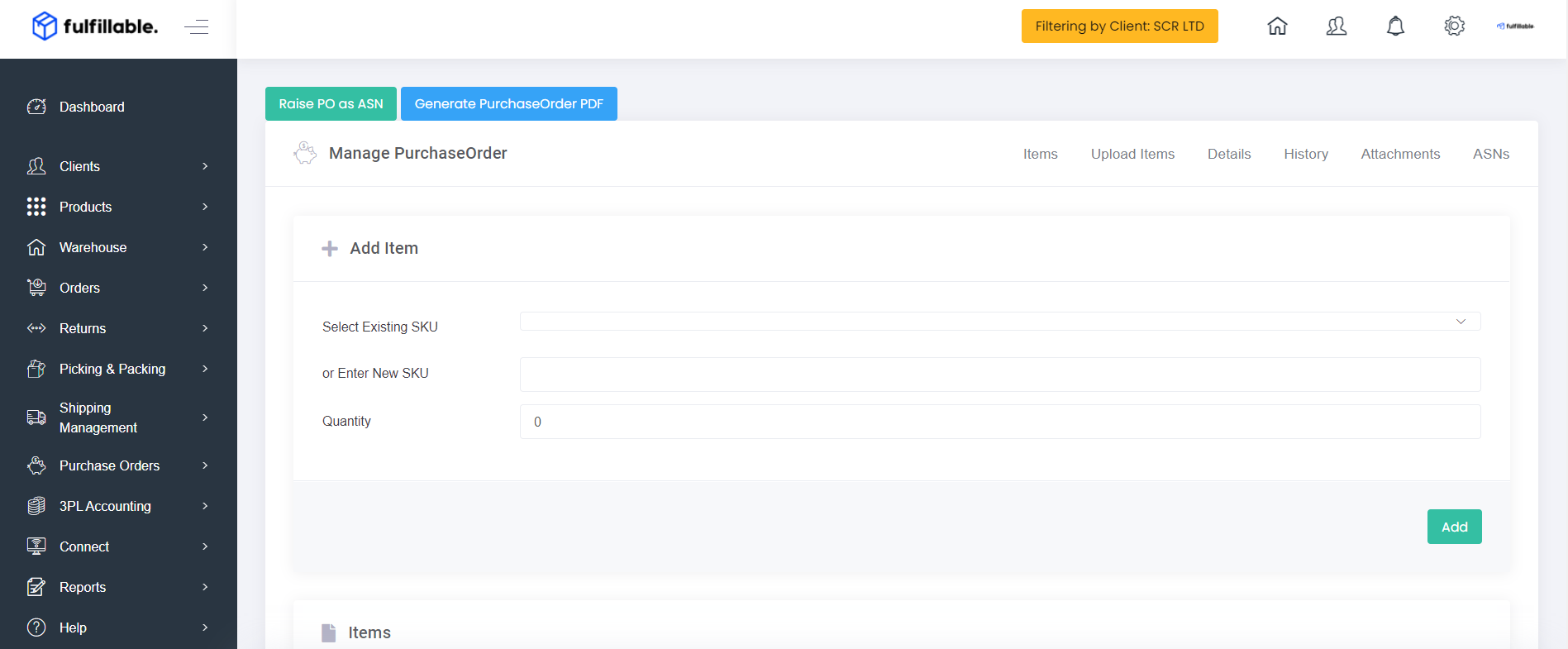
Once the supplier has confirmed your order you can come back to the purchase order and click the green "Raise PO As ASN" button. This lets us know the goods are on the way.
Comments
0 comments
Please sign in to leave a comment.