Overview
- Every time products are sent to us we need to know by submitting an ASN.
- ASN means "Advanced Shipping Notice"
- ASNs allow you and us to keep track of goods inbound and view quantities checked in.
- ASNs can be created from Purchase Orders to save time and automate your entire workflow from supplier to warehouse.
Creating An ASN
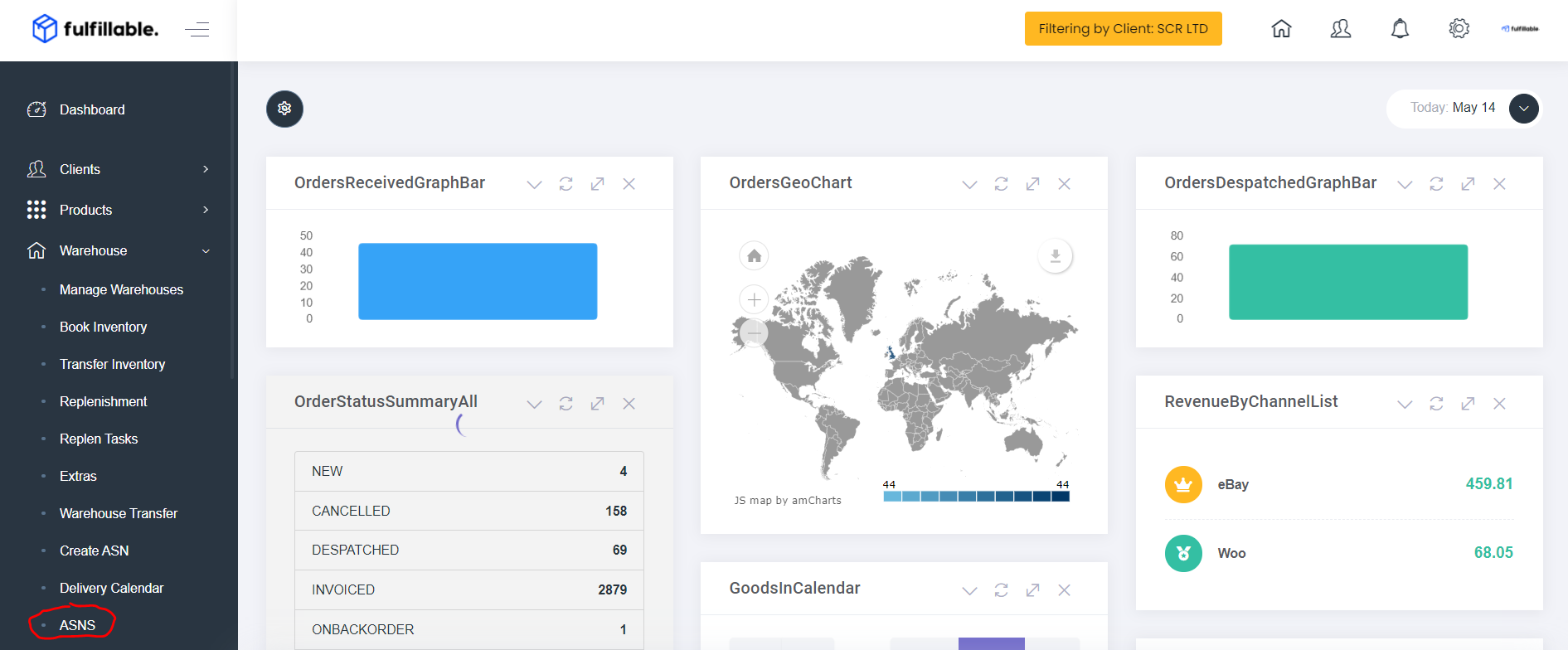
1) From your Fulfillable dashboard go to Warehouse>ASNs.
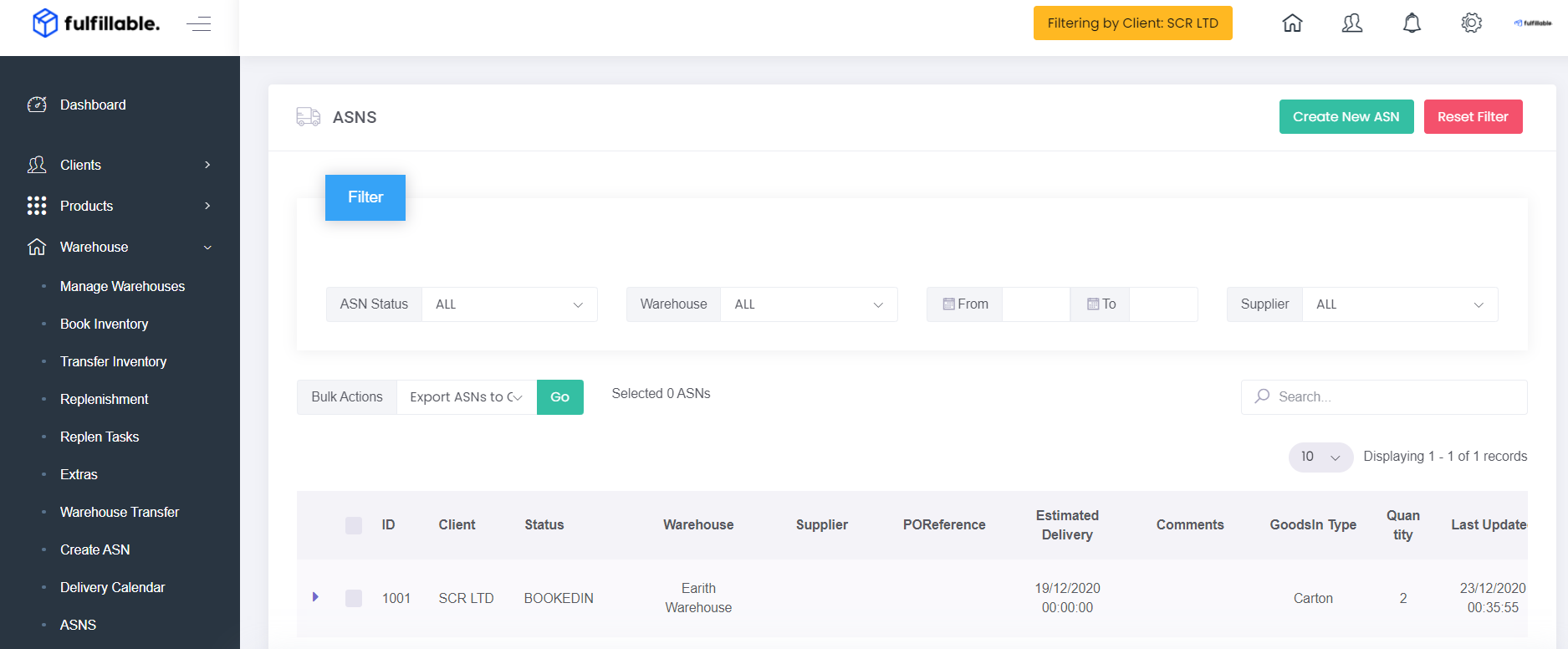
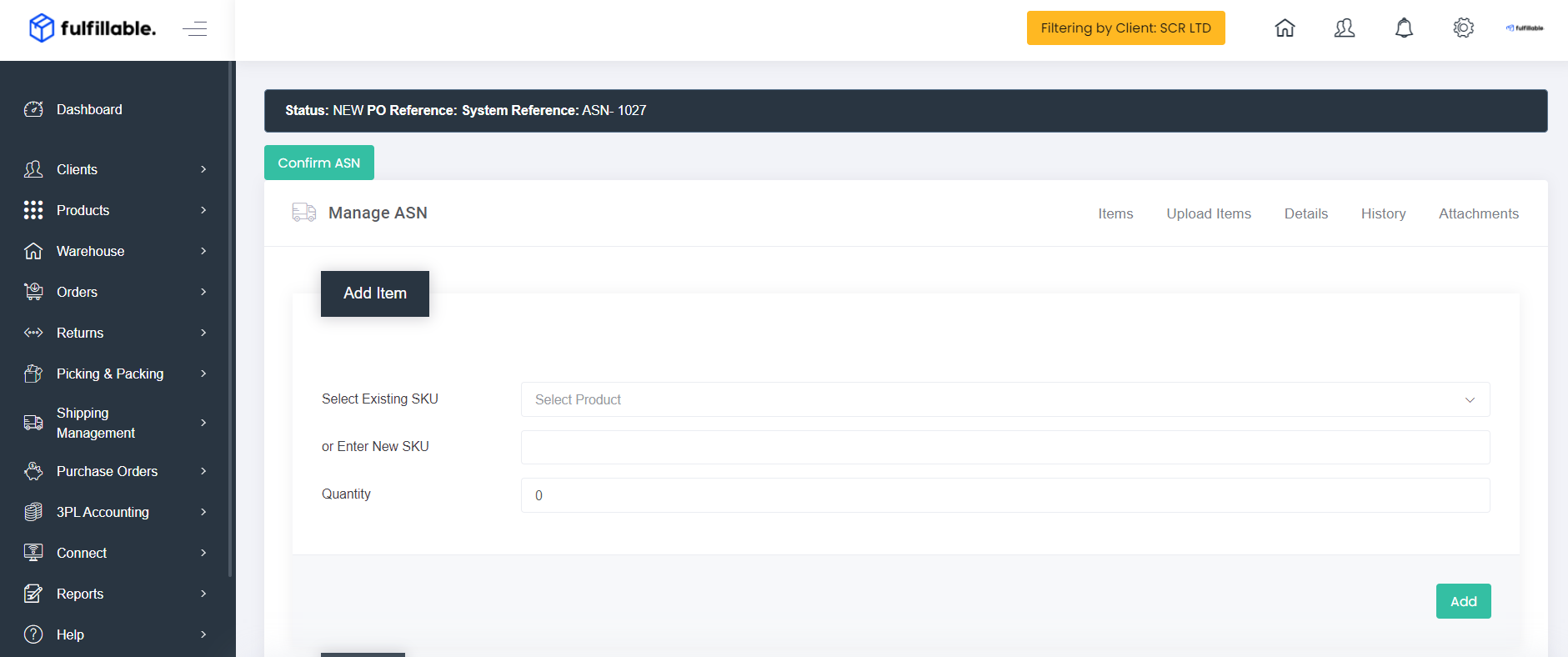
2) Click the green "Create ASN" button.
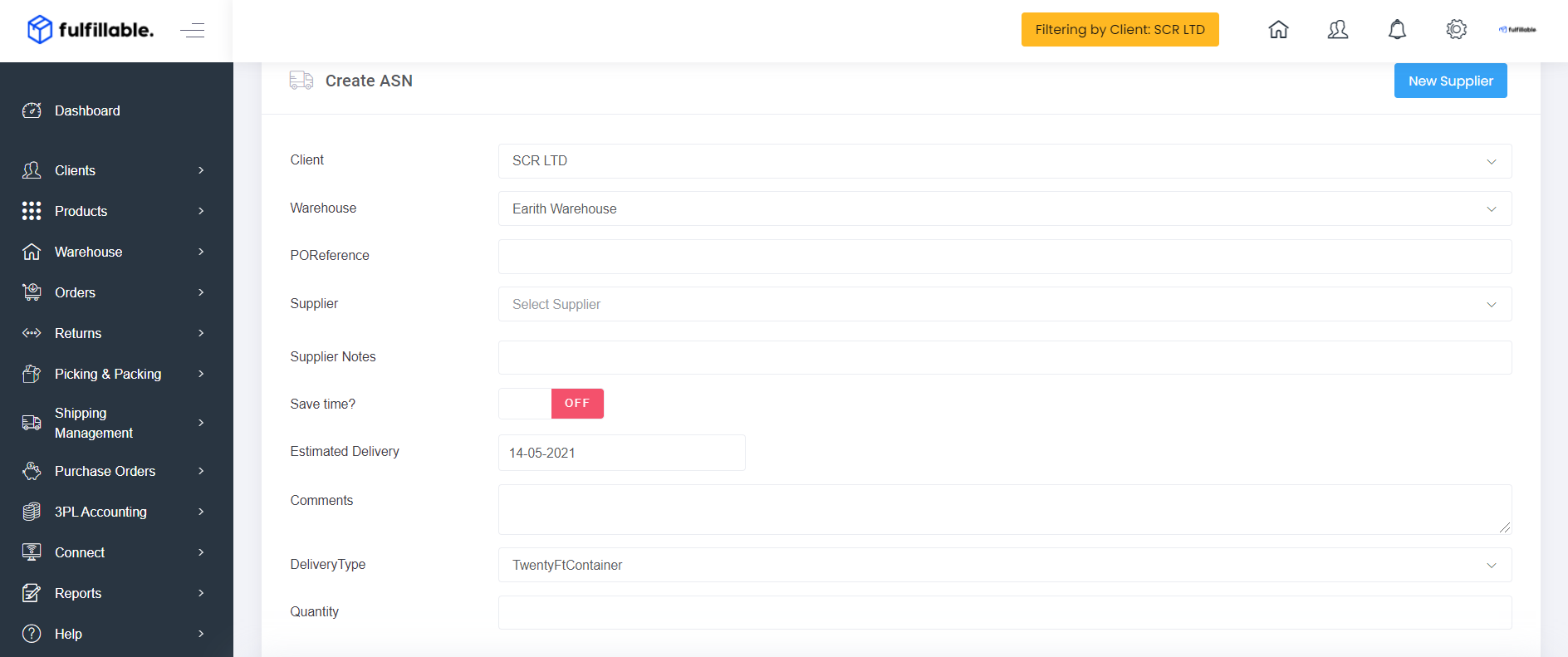
3) Input all the required information
- Warehouse
- PO Reference (If you are creating an ASN from a purchase order)
- Supplier (You can add more suppliers from Purchase Orders>Suppliers)
- Supplier Notes (If required)
- Save Time Switched Off (You can input if you wish but not required)
- Estimated Delivery Date
- Delivery Type
- Quantity (How many pallets or cartons etc)
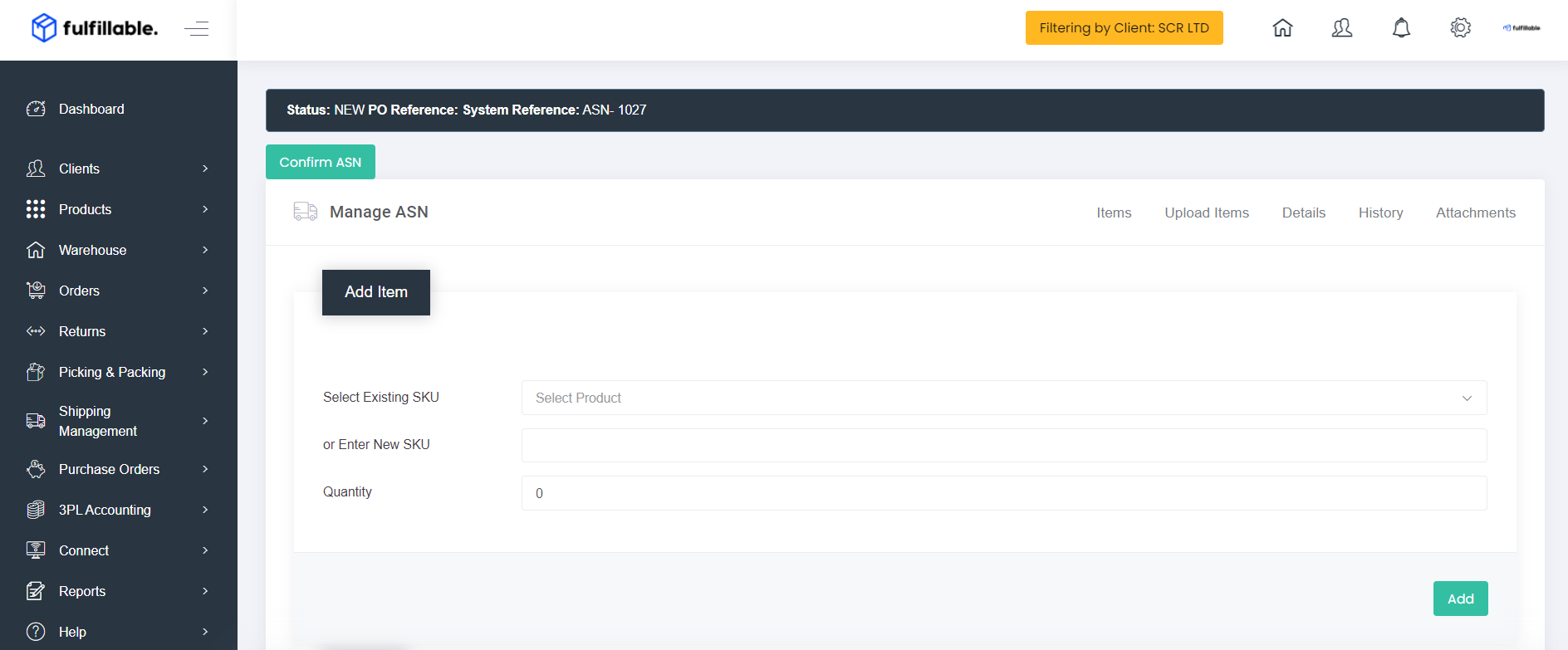
4) Click the "Next" button and proceed to the product page. Now enter the products and quantities being sent in.
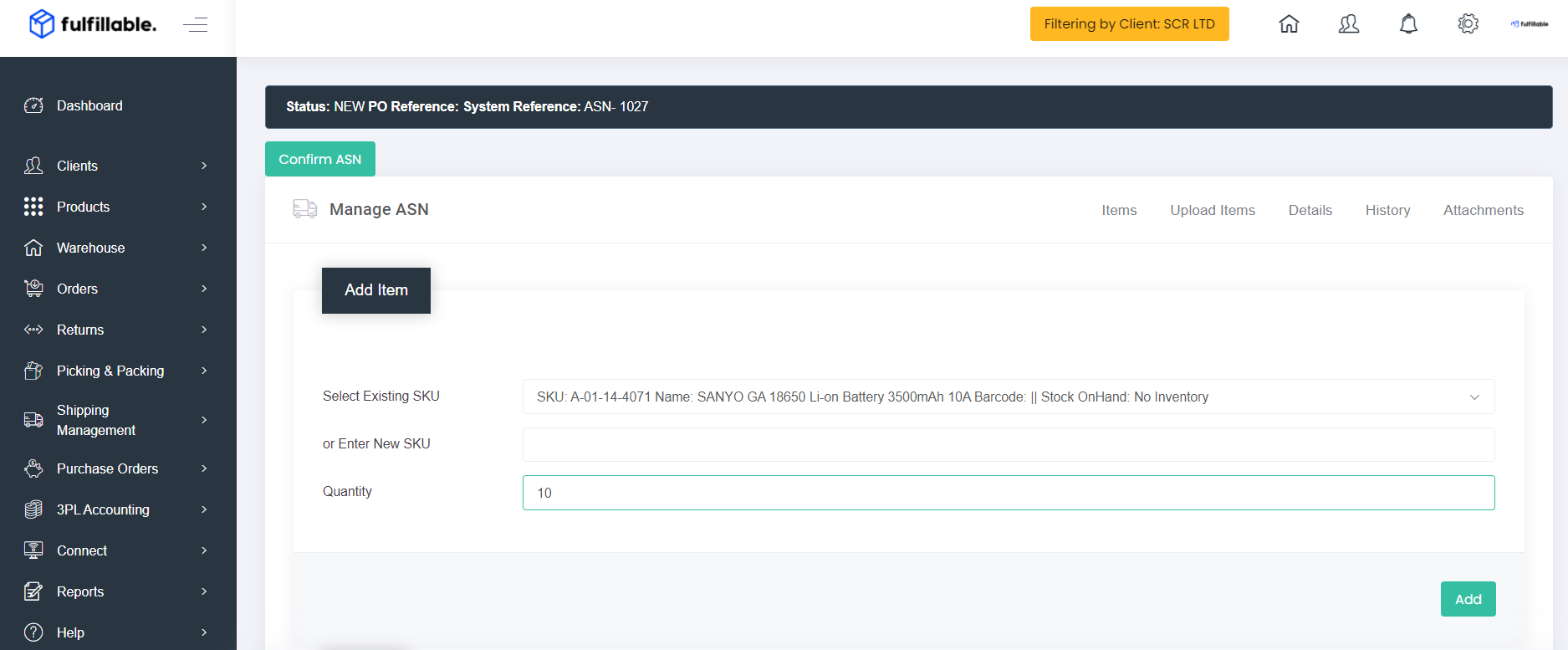
5) Once you have populated all the products and quantities the below grid should like like this.
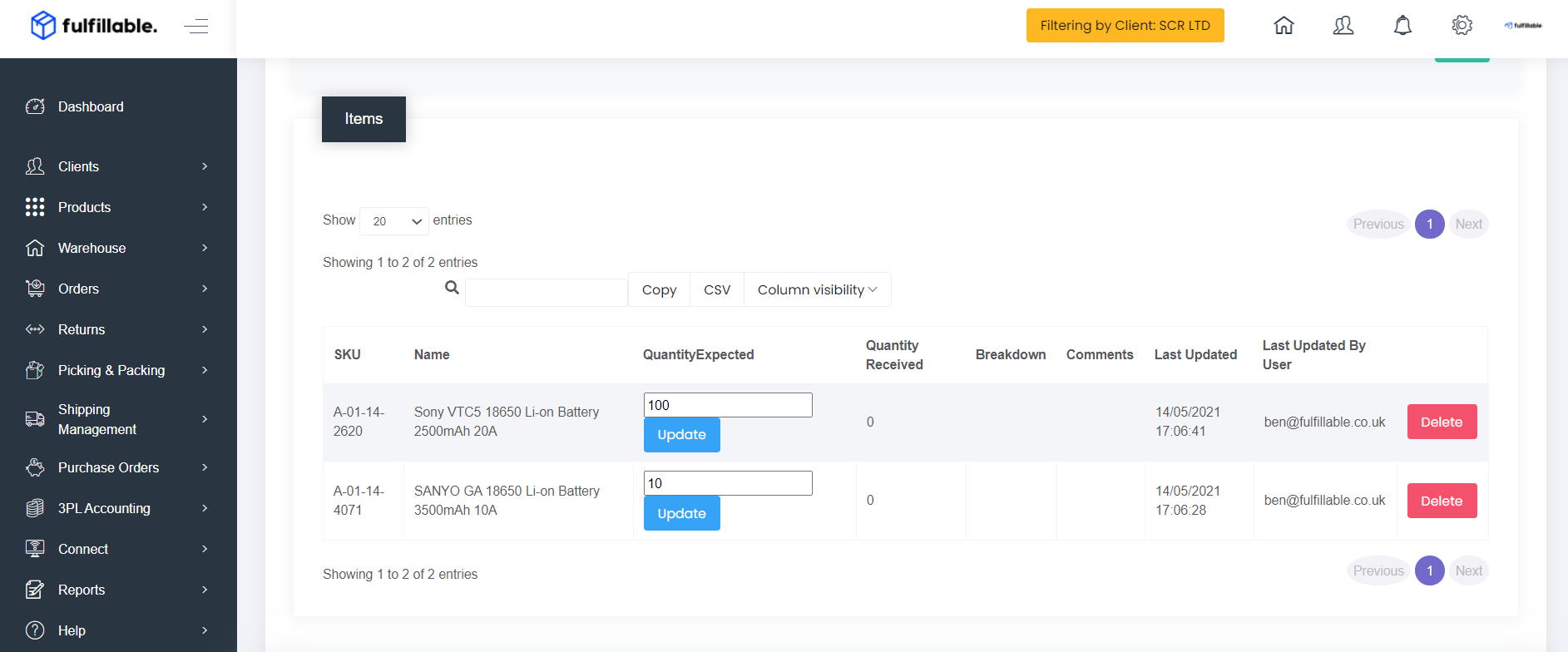
6) Once you are happy everything is correct scroll back up and click the green "Confirm ASN" button.
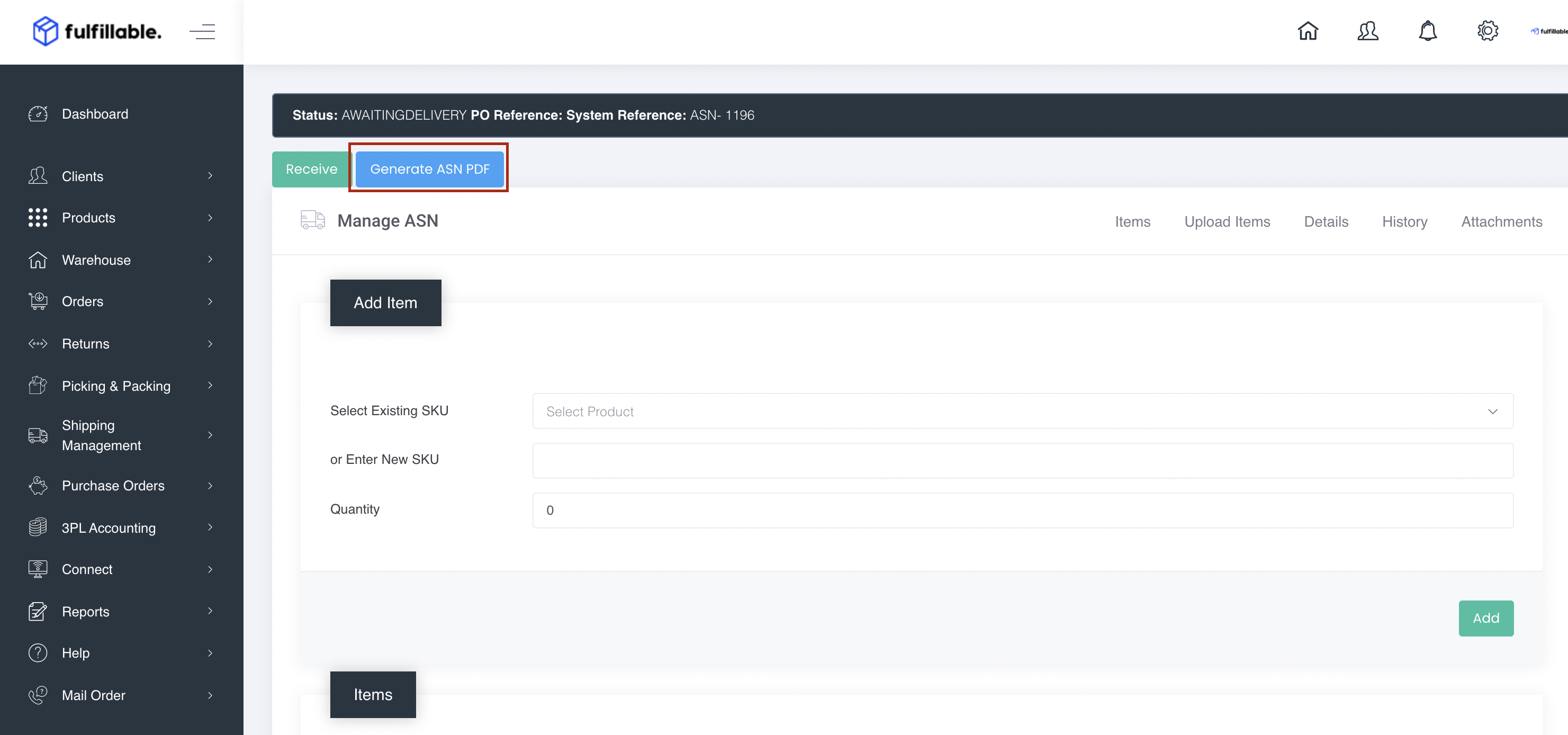
7) Your must now generate your ASN document and attach it to each package on the shipment. If your supplier is sending us goods directly, please ask them to print and attach the ASN document to every delivery container. If the shipment arrives without the ASN document attached, it may result in delays and admin charges for identifying the shipment.
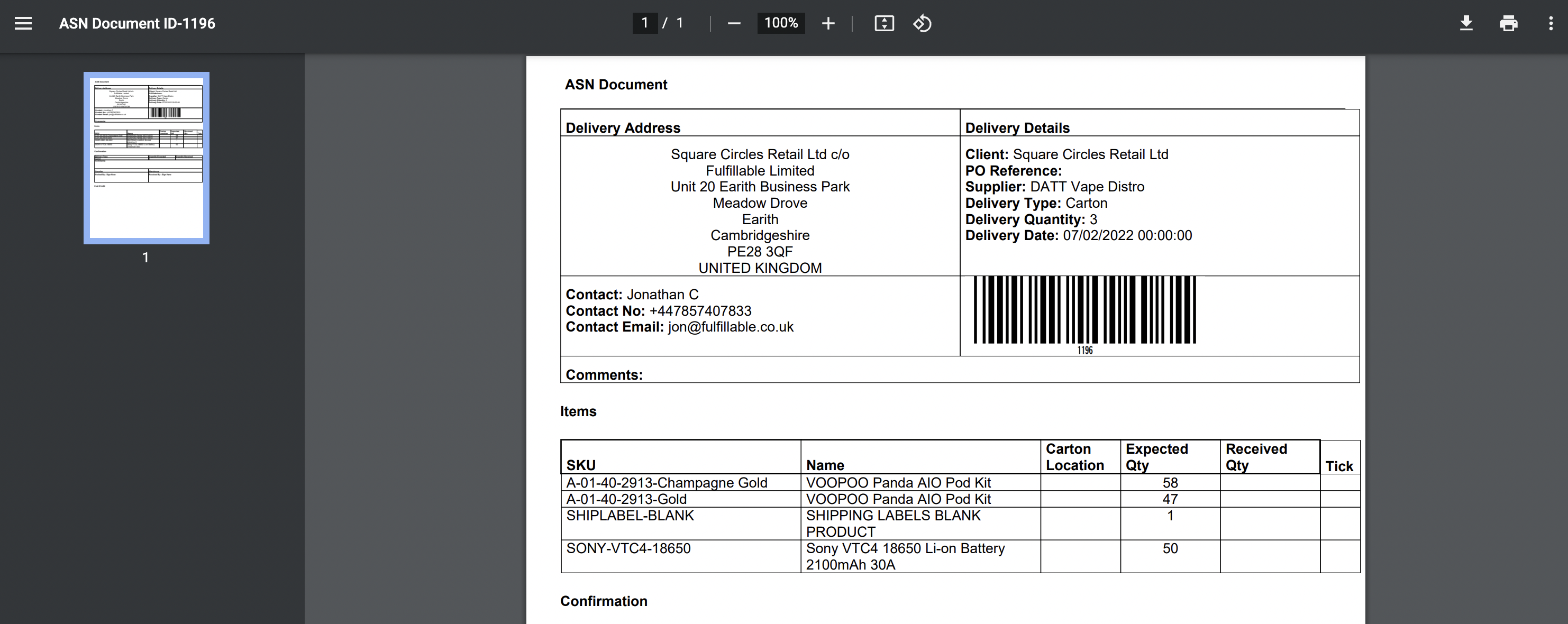
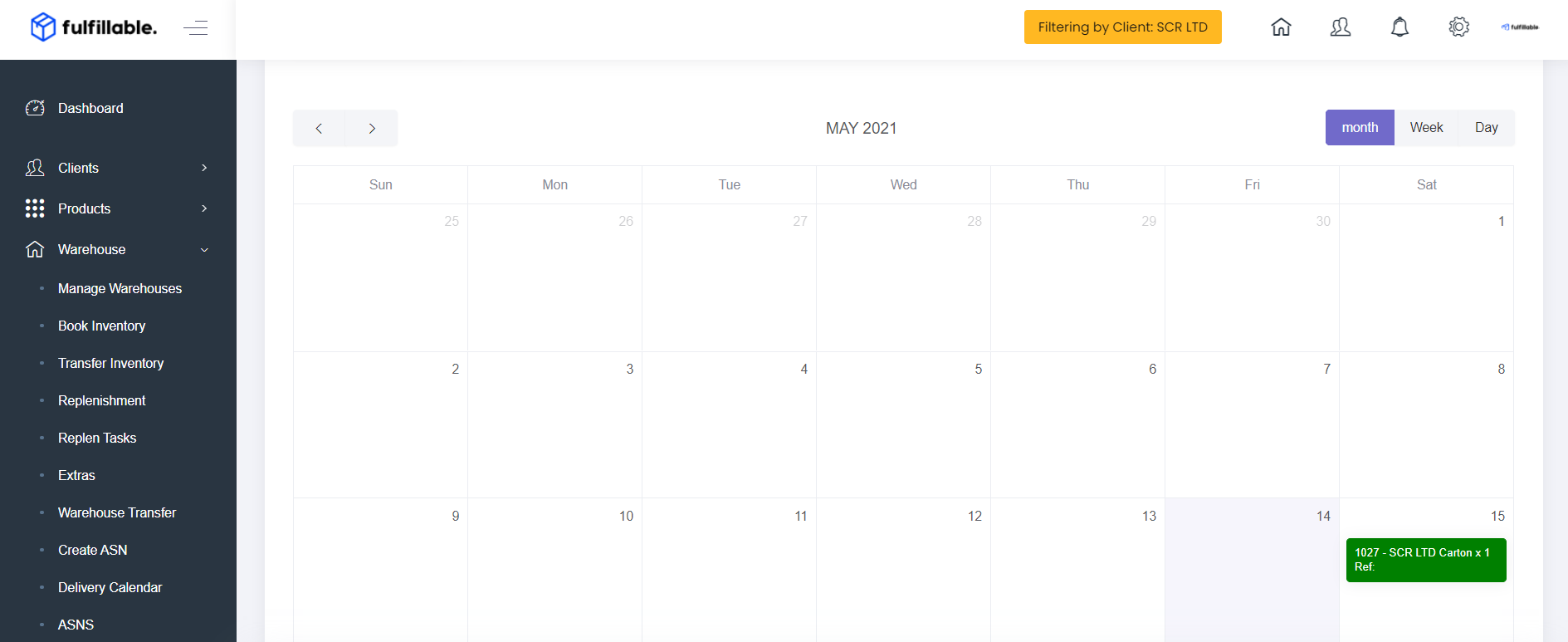
8) The ASN is now completed, once it arrives the warehouse team will begin the check-in process within 48 hours. You can view the status of any ASN along with units checked in by navigating to Warehouse>Delivery Calendar.
Uploading By CSV
- If you are sending in a large quantity of SKUs then it may save time to upload the ASN contents by CSV.
1) Follow steps 1-4 above.
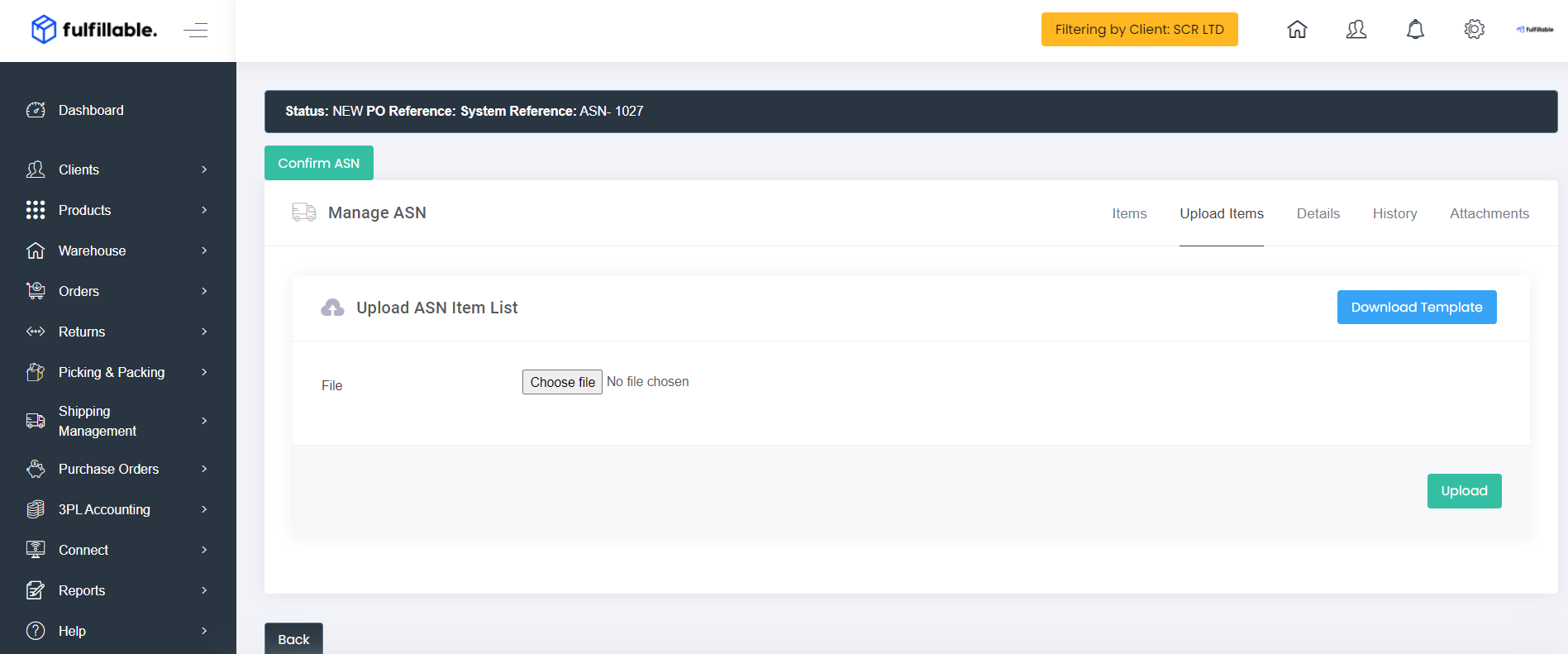
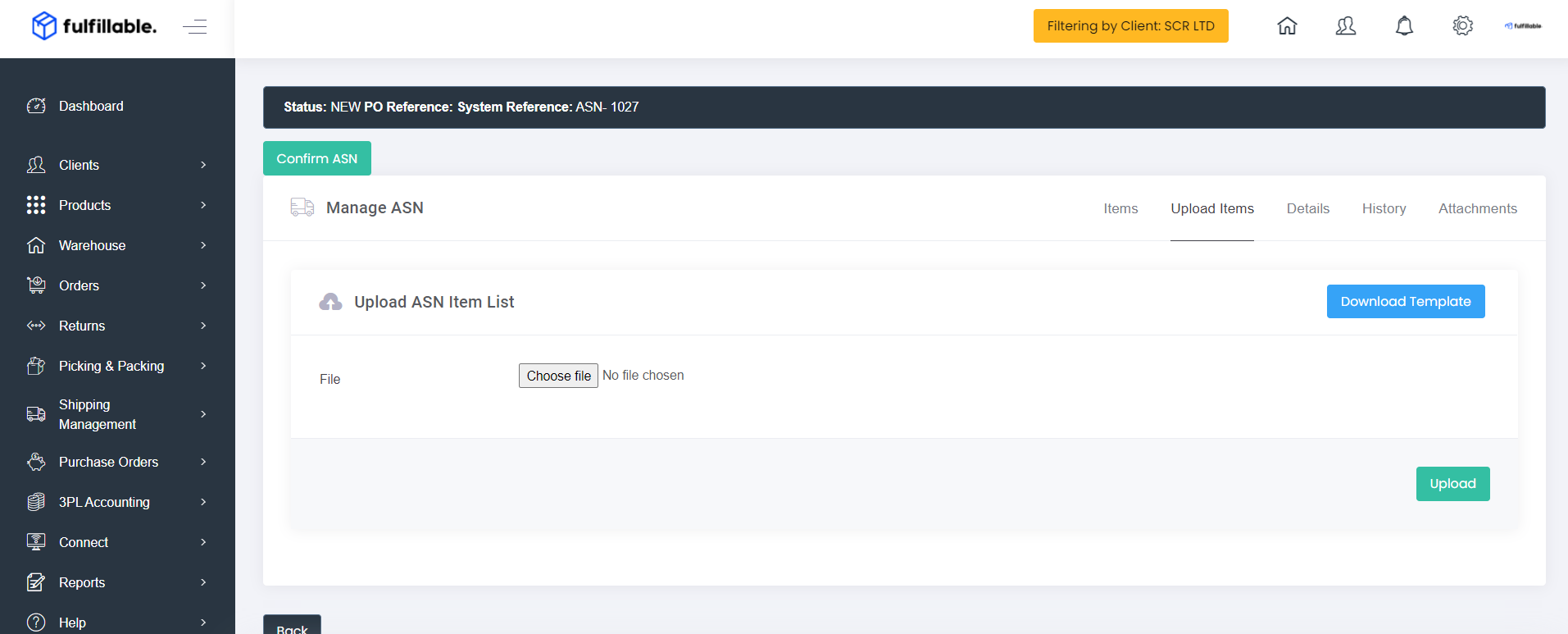
2) Navigate to the "Upload Items" tab on the top right and click the blue "Download Template" button.
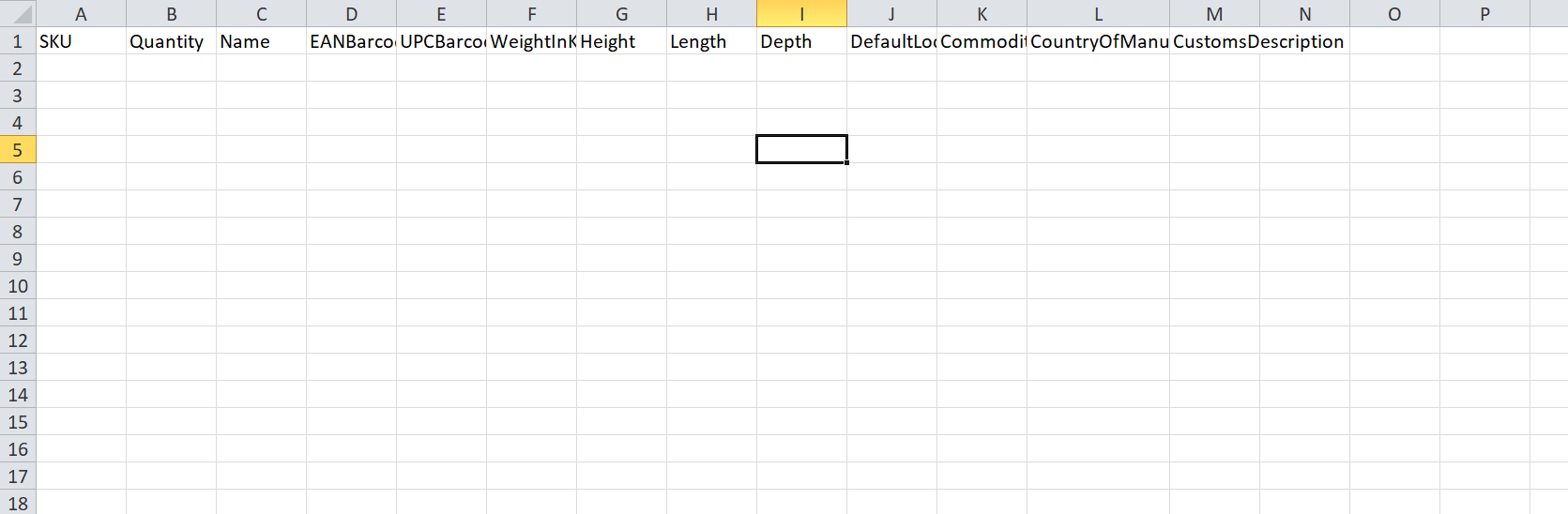
3) Open the CSV file and enter the SKU and Quantity if sending in existing products. If you are creating new products you must fill in the other columns also.
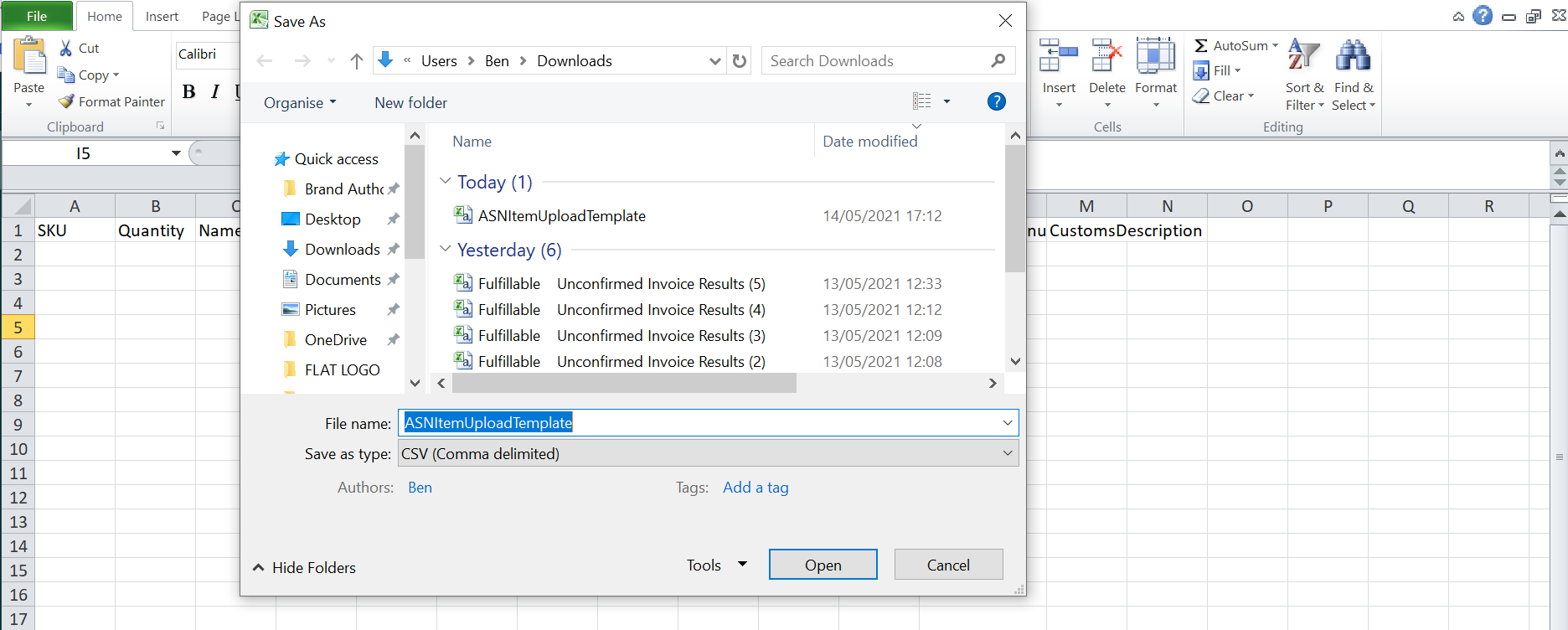
4) Once complete, navigate to "Save" and make sure to save the spreadsheet as a CSV file.
5) Now you can head back to Fulfillable, choose the file and then click the green "Upload" button. Your CSV contents will now be included in the ASN.
Comments
0 comments
Please sign in to leave a comment.